• Login
  • Register
Tuesday, June 9, 2026
Generate QR Codes
Free PDF Tools
Free Web Audit 360
TechSansar.com
  • Services
  • Top Posts
  • Nepali IT
  • Startups
  • Tech News
  • Categories
    • News
      • Tech
No Result
View All Result
TechSansar.com
  • Services
  • Top Posts
  • Nepali IT
  • Startups
  • Tech News
  • Categories
    • News
      • Tech
No Result
View All Result
TechSansar.com

Wireless Home Networking with Virtual WiFi Hotspot

ts by ts
January 24, 2011
in Internetworking
A A
0

Related Post

What is band steering and why you should use it #WiFi #Networking

7 Easy Fixes for Slow Wi-Fi, how to improve Wi-Fi signal coverage!

Setup Internet Access in MikroTik RouterBoard in 2 minutes (static IP)

IPv6 Scenario in Nepal with IPv6 deployment statistics

Virtual Router IconTurn your laptop into a virtual personal Wi-Fi hotspot and seamlessly implement Wireless Home Networking in few minutes. This process should work equally even if your laptop is already wireless connected to internet/network or Ethernet. You can simultaneously connect to a number of gadgets or computer using your own personal Wi-Fi hotspot with WPA2 encryption. (If you want to create wireless ad-hoc network not a virtual router, then read this article.)
The users of Windows 7 & Windows Vista (running Intel’s Centrino 2 Processor with My WiFi technology – don’t worry about these words, your laptop will be able to work with this process in most of the cases) except the Starter Edition of Win 7 should download and install Virtual Router – Wifi Hot Spot for Windows 7 / 2008 R2 from Codeplex site. After installing this software, Virtual Router Manager will run automatically. Ensure your Wireless adapter is turned on (if you are connected via Ethernet otherwise if you are already wirelessly connected adapter is already on).

FYI: According to Codeplex, Virtual Router is a free, open source software based router for PCs running Windows 7 or Windows Server 2008 R2. Using Virtual Router, users can wirelessly share any internet connection (Wifi, LAN, Cable Modem, Dial-up, Cellular, etc.) with any Wifi device (Laptop, Smart Phone, iPod Touch, iPhone, Android Phone, Zune, Netbook, wireless printer, etc.) These devices connect to Virtual Router just like any other access point, and the connection is completely secured using WPA2 (the most secure wireless encryption.)

Enter the Network Name (SSID) and password (8 characters min for WPA2 encryption) in the Virtual Router Settings wizard. Then Start Virtual Router. Now, try to connect to this Network (SSID) from your mobile phone or another laptop or Wireless adapter installed desktop.

Setting up Virtual Router WiFi for Home Wireless Networking
Step 1. Setting up Virtual Router WiFi for Home Wireless Networking
Connecting with Virtual Router - Virtual WiFi Hotspot
The Virtual Router Manager shows a list of Peers Connected. In above screenshot, an iPhone, a Mac and a Desktop computer has been connected to the wireless home or private hotspot we just created.
Changing icons of Peer devices connected to the virtual Router
Right click to change icons of Peer devices connected to the virtual Router
The complete documentation and frequently asked questions about Virtual Router Manager, supported Wireless Network Adapter and other issues can be tracked from Codeplex’s Virtual Router page.

Tags: ComputingInternetiPhoneSupportTips & TricksTutorialsWi-FiWindows-7
Share212Tweet133Send
Previous Post

Wireless Home Networking with Ad-Hoc Network

Next Post

Setting up a New Computer with Essential Applications

Related Posts

Band steering operation
Internetworking

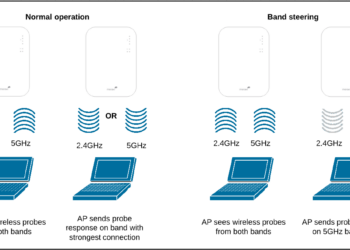
What is band steering and why you should use it #WiFi #Networking

With an ever-increasing number of Internet-connected devices, it is ideal to have a seamless Wireless network where clients are on...

by TechSansar Editor
July 26, 2024
Improve wifi signal coverage
Internetworking

7 Easy Fixes for Slow Wi-Fi, how to improve Wi-Fi signal coverage!

Often time we come across situations where we struggle to either maintain that only one bar of the WiFi signal...

by TechSansar Editor
July 22, 2019

Recent News

Illustrating Sovereign AI Compute in Nepal Syuchatar with circuitary

Syuchatar in Regional Context: A Policy Commentary on Sovereign AI Compute

May 31, 2026
Technical explainer on Nepal's announced Sovereign AI Compute Center at Syuchatar. What Budget 2083/84 specified, what it didn't, and the four design questions that decide its outcome.

Nepal’s Sovereign AI Compute Center at Syuchatar: A Technical Explainer

May 30, 2026
Nepal budget 2083-84 on IT

Nepal Budget 2083/84: A Comprehensive Reference on the Tech, IT and Innovation Provisions

May 30, 2026
Success Story of a GovTech

Nepal’s Department of IT Saved Rs 98 Crore with Centralized A2P Messaging: A GovTech Success Story

December 31, 2025
Hostinger
  • News
  • Tech
  • Event
Generate free QR Codes with QRSansar

TechSansar.com, ICT For Media Pvt Ltd, Regd #249079/077/078, VAT #609868175.
By continuing to use this site, you agree to our cookies and privacy policies.
Here is our Do Not Track (DNT) Guide. Hosted on a VPS and uses this free PDF tool. You can also subscribe to our newsletter.
Creating tech contents for the b̶o̶t̶s̶ humans since 2009 • Team TechSansar • ICT4M with ❤ from Nepal

Welcome Back!

Login to your account below

Forgotten Password? Sign Up

Create New Account!

Fill the forms below to register

All fields are required. Log In

Retrieve your password

Please enter your username or email address to reset your password.

Log In
No Result
View All Result
  • Home
  • Shop peripherals
  • Buy softwares
  • Top websites
  • Contact us

TechSansar.com, ICT For Media Pvt Ltd, Regd #249079/077/078, VAT #609868175.
By continuing to use this site, you agree to our cookies and privacy policies.
Here is our Do Not Track (DNT) Guide. Hosted on a VPS and uses this free PDF tool. You can also subscribe to our newsletter.
Creating tech contents for the b̶o̶t̶s̶ humans since 2009 • Team TechSansar • ICT4M with ❤ from Nepal