

• Login
  • Register
Sunday, July 19, 2026
Generate QR Codes
Free PDF Tools
Free Web Audit 360
TechSansar.com
  • Services
  • Top Posts
  • Nepali IT
  • Startups
  • Tech News
  • Categories
    • News
      • Tech
No Result
View All Result
TechSansar.com
  • Services
  • Top Posts
  • Nepali IT
  • Startups
  • Tech News
  • Categories
    • News
      • Tech
No Result
View All Result
TechSansar.com

[How to] Migrate to Windows 7 from Windows XP in simple manner

ts by ts
January 21, 2012
in Computing, Windows
A A
0
Windows Upgrade Advisor

Windows Upgrade Advisor

Related Post

Gen Z Protest Kathmandu 2025

The Launch That Moved Syuchatar: YetiCloud.AI and the Night Nepal’s Compute Policy Went Public

Nepal Budget 2083/84: A Comprehensive Reference on the Tech, IT and Innovation Provisions

Top 10 iOS 18 features that you can’t ignore #iOS18

Microsoft released Windows 7 in 2009 and over the two years large number of users have migrated from Windows XP to Windows 7. This gives more concrete reason to migrate to newer platform from Windows XP. In this article we will discuss about the various way to migrate from windows xp to windows 7 in easiest manner. We will further take stock of the different ways that will help organizations in deploying Windows 7 flawlessly in their enterprise environment.
There are various ways to migrate from Windows XP to Windows 7. You can use the following tools to successfully migrate from Windows XP to 7 Migration:

  • Windows Upgrade Advisor
  • Windows Easy Transfer
  • USMT 4.0 & USMT 4.0 using Hard-Link Migration

These are some of the ways in which you can take the backup of the your data in Windows XP and after migrating to Windows 7, you can restore that data using any of the tools mentioned above. However, even before you plan for a migration, make sure that you have a data backup in case of an unsuccessful migration.
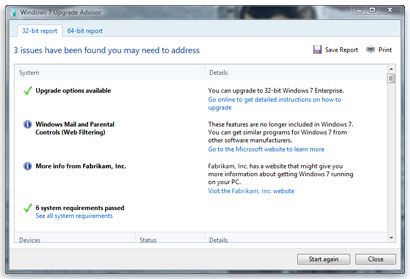
First and foremost thing is to check whether  your machine is capable of handling Windows 7 or not. You can visit Microsoft’s website to identify the system requirements for Windows 7. The most preferred way to see the actual requirements and validate if the computer is capable of running Windows 7 is running Windows Upgrade Advisor.
Windows Upgrade Advisor
First download the Windows 7 Upgrade Advisor. Once the tool is downloaded, run the tool and see the report that will give detailed hardware information and accordingly you can plan for Windows 7 Migration.

Windows Upgrade Advisor
Windows Easy Transfer
Windows Easy Transfer is free tool that is designed to take the user data and settings as a backup and store it on external USB device. This is recommended if you are migrating from Windows XP to Windows 7 on same machine. If there is network connectivity between the old computer and the new computer then you can directly transfer the data over the network. Lastly, if you have Windows Easy Transfer cable then you can use it to transfer data from the old computer to the new computer.
Windows Easy Transfer
Once you are done with the data backup using Windows Easy Transfer, you can install Windows 7 on the computer. After the successful installation of Windows 7, you can run the Windows Easy Transfer on Windows 7 and restore the user data and settings back to the same computer.
Things to note, Windows Easy Transfer:

  • does not take the backup of Program Files
  • does not transfer the data from 64-bit Windows to 32-bit Windows

You can download Windows Easy Transfer for Windows XP and Windows Vista here

Tags: MicrosoftTips & TricksTutorialsWindows-7
Share212Tweet133Send
Previous Post

Understanding Broadlink WiFi: FAQs

Next Post

Status of .NP Domain Names and Mercantile's breaching of its own Rules

Related Posts

Computing

Gen Z Protest Kathmandu 2025

gen-z-protest-kathmandu-2025

by E Lamsal
July 4, 2026
The Launch That Moved Syuchatar: YetiCloud.AI and the Night Nepal’s Compute Policy Went Public
Computing

The Launch That Moved Syuchatar: YetiCloud.AI and the Night Nepal’s Compute Policy Went Public

Standalone analysis. Related TechSansar coverage: the Syuchatar technical explainer and the Syuchatar policy commentary. For five weeks, Nepal's sovereign AI...

by TechSansar Editor
July 4, 2026

Recent News

Gen Z Protest Kathmandu 2025

July 4, 2026
The Launch That Moved Syuchatar: YetiCloud.AI and the Night Nepal’s Compute Policy Went Public

The Launch That Moved Syuchatar: YetiCloud.AI and the Night Nepal’s Compute Policy Went Public

July 4, 2026
Illustrating Sovereign AI Compute in Nepal Syuchatar with circuitary

Syuchatar in Regional Context: A Policy Commentary on Sovereign AI Compute

May 31, 2026
Technical explainer on Nepal's announced Sovereign AI Compute Center at Syuchatar. What Budget 2083/84 specified, what it didn't, and the four design questions that decide its outcome.

Nepal’s Sovereign AI Compute Center at Syuchatar: A Technical Explainer

May 30, 2026
Hostinger
  • News
  • Tech
  • Event
Generate free QR Codes with QRSansar

TechSansar.com, ICT For Media Pvt Ltd, Regd #249079/077/078, VAT #609868175.
By continuing to use this site, you agree to our cookies and privacy policies.
Here is our Do Not Track (DNT) Guide. Hosted on a VPS and uses this free PDF tool. You can also subscribe to our newsletter.
Creating tech contents for the b̶o̶t̶s̶ humans since 2009 • Team TechSansar • ICT4M with ❤ from Nepal

Welcome Back!

Login to your account below

Forgotten Password? Sign Up

Create New Account!

Fill the forms below to register

All fields are required. Log In

Retrieve your password

Please enter your username or email address to reset your password.

Log In
No Result
View All Result
  • Home page
  • Shop peripherals
  • Buy software
  • Featured articles
  • My account

TechSansar.com, ICT For Media Pvt Ltd, Regd #249079/077/078, VAT #609868175.
By continuing to use this site, you agree to our cookies and privacy policies.
Here is our Do Not Track (DNT) Guide. Hosted on a VPS and uses this free PDF tool. You can also subscribe to our newsletter.
Creating tech contents for the b̶o̶t̶s̶ humans since 2009 • Team TechSansar • ICT4M with ❤ from Nepal


