

• Login
  • Register
Sunday, July 19, 2026
Generate QR Codes
Free PDF Tools
Free Web Audit 360
TechSansar.com
  • Services
  • Top Posts
  • Nepali IT
  • Startups
  • Tech News
  • Categories
    • News
      • Tech
No Result
View All Result
TechSansar.com
  • Services
  • Top Posts
  • Nepali IT
  • Startups
  • Tech News
  • Categories
    • News
      • Tech
No Result
View All Result
TechSansar.com

[How to] Configure SMC Routers – EliteConnect

ts by ts
May 7, 2013
in Computing, Tutorials
A A
0
SMC Enterprise Access Points Admin Interface

SMC Enterprise Access Points Admin Interface

SMC Enterprise Access Points Admin Interface

SMC’s EliteConnect SOHO Routers are one of the cheapest routers available in the market today, plus they are also one of the easiest home routers to configure to. The major EliteConnect SMCE devices are IEEE 802.11 n access point (AP) capable that meets draft 2.0 standards (isn’t ac the next big thing in the industry?) These routers are fully interoperable with older 802.11 a/b/g standards, providing a transparent, wireless high speed data communication between the wired LAN and fixed or mobile devices.

We have tested them to work well with ADSL (connect after the modem), WebSurfer & WorldLink WiZoom (connect after the rooftop receiver), plus NTC WiMax (connect the network link after you’re WiMax connected in your CPE device having Ethernet port.) Majority of todays WiFi routers are dual-band 2.4 and 5 GHz operable to give better network coverage and address compatibility with newer devices.


This review is based on SMCE21011 router, like most of the SMC routers it supports up to eight Virtual Access Points (VAP) interfaces, which allow traffic to be separated for different user groups within the same AP service area. Further, VAPs can support up to total of 64 wireless clients, the greatest benefit being each VAP having its own SSID (Service Set Identification), security settings, VLAN assignments, and other parameters, allowing the AP to serve a diverse range of clients in an area from a single unit.

We already said that SMC router’s are easiest to use, but with a point, and that would be an initial configuration to the device. Do note that most of today’s laptops (Ultrabooks and convertibles) lack Ethernet port on the device which is the saddest part to configure SMCE21011.

Internet Protocol TCP IPv4 Settings for SMC

Initial Configuration of SMCE Router

  1. Connect your SMC router directly to the PC
  2. SMCE21011 have default IP address of 192.168.2.1 and a subnet mask of 255.255.255.0. Now, set PC IP to 192.168.2.2 on the same subnet as your router (192.168.2.x)
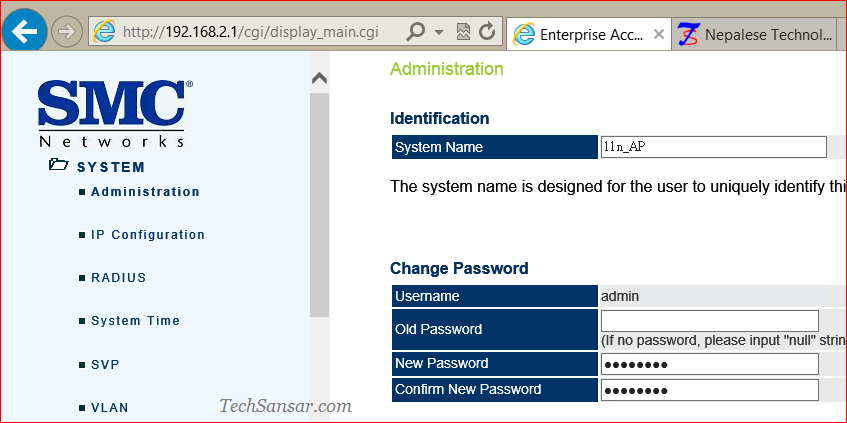
  3. Point your favorite web browser to 192.168.2.1 (NOT the PC’s IP but the router’s) to open access point management interface.
  4. The default username and password for most of the SMC Devices are admin and smcadmin.

The default access point (AP) is named as SMC_VAP_1 while the default system identification is 11n_AP. Now you can create APs for your personal use, AP only to share network with your guests, or AP just to link your DLNA enabled devices.

Related Post

Gen Z Protest Kathmandu 2025

The Launch That Moved Syuchatar: YetiCloud.AI and the Night Nepal’s Compute Policy Went Public

Nepal Budget 2083/84: A Comprehensive Reference on the Tech, IT and Innovation Provisions

Top 10 iOS 18 features that you can’t ignore #iOS18

The SMCE21011 utilizes MIMO technology and Spatial Multiplexing to achieve the highest possible data rate and throughput on the 802.11n frequency. The unit’s PoE based RJ-45 port conformant to IEEE 802.3af provides a 1 Gbps full-duplex link to a wired LAN.


Tags: InternetNetworkingWi-Fi
Share212Tweet133Send
Previous Post

Price of Nokia Lumia & Asha Smart phones in Nepal

Next Post

Technology in Effect in Nepalese way all about TechSansar: Confession

Related Posts

Computing

Gen Z Protest Kathmandu 2025

gen-z-protest-kathmandu-2025

by E Lamsal
July 4, 2026
The Launch That Moved Syuchatar: YetiCloud.AI and the Night Nepal’s Compute Policy Went Public
Computing

The Launch That Moved Syuchatar: YetiCloud.AI and the Night Nepal’s Compute Policy Went Public

Standalone analysis. Related TechSansar coverage: the Syuchatar technical explainer and the Syuchatar policy commentary. For five weeks, Nepal's sovereign AI...

by TechSansar Editor
July 4, 2026

Recent News

Gen Z Protest Kathmandu 2025

July 4, 2026
The Launch That Moved Syuchatar: YetiCloud.AI and the Night Nepal’s Compute Policy Went Public

The Launch That Moved Syuchatar: YetiCloud.AI and the Night Nepal’s Compute Policy Went Public

July 4, 2026
Illustrating Sovereign AI Compute in Nepal Syuchatar with circuitary

Syuchatar in Regional Context: A Policy Commentary on Sovereign AI Compute

May 31, 2026
Technical explainer on Nepal's announced Sovereign AI Compute Center at Syuchatar. What Budget 2083/84 specified, what it didn't, and the four design questions that decide its outcome.

Nepal’s Sovereign AI Compute Center at Syuchatar: A Technical Explainer

May 30, 2026
Hostinger
  • News
  • Tech
  • Event
Generate free QR Codes with QRSansar

TechSansar.com, ICT For Media Pvt Ltd, Regd #249079/077/078, VAT #609868175.
By continuing to use this site, you agree to our cookies and privacy policies.
Here is our Do Not Track (DNT) Guide. Hosted on a VPS and uses this free PDF tool. You can also subscribe to our newsletter.
Creating tech contents for the b̶o̶t̶s̶ humans since 2009 • Team TechSansar • ICT4M with ❤ from Nepal

Welcome Back!

Login to your account below

Forgotten Password? Sign Up

Create New Account!

Fill the forms below to register

All fields are required. Log In

Retrieve your password

Please enter your username or email address to reset your password.

Log In
No Result
View All Result
  • Home page
  • Shop peripherals
  • Buy software
  • Featured articles
  • My account

TechSansar.com, ICT For Media Pvt Ltd, Regd #249079/077/078, VAT #609868175.
By continuing to use this site, you agree to our cookies and privacy policies.
Here is our Do Not Track (DNT) Guide. Hosted on a VPS and uses this free PDF tool. You can also subscribe to our newsletter.
Creating tech contents for the b̶o̶t̶s̶ humans since 2009 • Team TechSansar • ICT4M with ❤ from Nepal

