Have you ever felt you wanted to access a file in Windows and it’s buried deep within various tiers of sub-directories. See further no more, for, I have come to your rescue. Today we are going to utilize run interface to create shortcuts that will make accessing those files and similarly folders and software faster.
This tutorial assumes reader is acquainted with run interface in windows. If not, [Win] + R combination brings up run interface where we can enter commands to be executed. It can also be accessed from Start Menu in before Windows 8 versions. In versions beyond Windows 8, it can be accessed in Power User Task Menu [Win + X] as well.
Pre-requisites:
- Knowledge of Windows environment variables
- Knowledge of Windows shortcut (i.e. *.lnk) files
- Windows run interface [Win + R]
This tutorial has been divided into three parts; first one gives background knowledge on run commands and environment variables. Second and third part provides steps on how to make folder globally accessible and creating shortcuts to be used with run interface.
Part One: Understanding how run commands and environment variables work
Commands we enter in run interface are executed by searching the folders listed in Path system variable for exact file name excluding extension.
There are two types of environment variables in windows i.e. user variables and system variables. These variables contain values about system and more which are globally accessible from applications; command prompt; run interface.
In order to be able to view variables follow below steps:
Step 1. Since, we are acquainted with run interface we will proceed using it.
Open Run interface [Win] + R

Step 2. Enter sysdm.cpl to open System Properties.

Step 3. Go to Advanced tab of System Properties

Step 5. Open Environment Variables
But, be careful before modifying these variables, chances of breaking system is also high here .

Now, we have learned where we can find environment variables. Lets proceed to our second part which teaches you how to add your own path here and use it.
Part Two: Creating a path folder and adding it to Path variable in system type environment variable
By following above steps, now we can view and modify the variables to our convenience.
Since, run commands are executed by matching to exact file in folders in Path system variable, we need to create a folder to place them. And that folder needs to entered into Path system variable in order to be globally accessible and be searched when we enter a command in run interface.
Firstly, create a folder where you find easy and keep in mind you will be putting all shortcut links and softwares you want easy access in this folder. Below is a glimpse of such folder.
In my case; I created a folder “cmds” in “C:\” which means path will be “C:\cmds”.

We can see that by entering “p” in run interface it opens a folder that we have shortened to decrease access time.
Now for the second part, we need to make this folder globally accessible by adding this path to Path system variable.
For this, follow below steps:
Step 1. Following steps in Part One; go to environment variables.

Step 2. There, in system variables section; find Path variable and Edit it

Step 3. Add the path we want to be accessible from run interface to that variable. We need to follow a convention to add new path in this variable as shown below:
<path1>;<path2>;<new path to be added>
eg: C:\windows;C:\windows\system32;<new path>

Now whenever we enter commands into run interface, this folder will also be searched for exact match. After this we can proceed to third part where we will be creating custom run commands for our easiness.
Part Three: Creating shortcuts to files/ folders/ software you want to access faster
Since, now we have set-up run interface to scan our preset folder for any commands we enter there. What is remaining is to create shortcut links that are more easy to type and will be accessed from run interface.
Step 1. Create shortcut link for files/ folder/ software that you want to access by right clicking and “create shortcut”.

Step 2. Move that newly created shortcut file to the path we previously created.

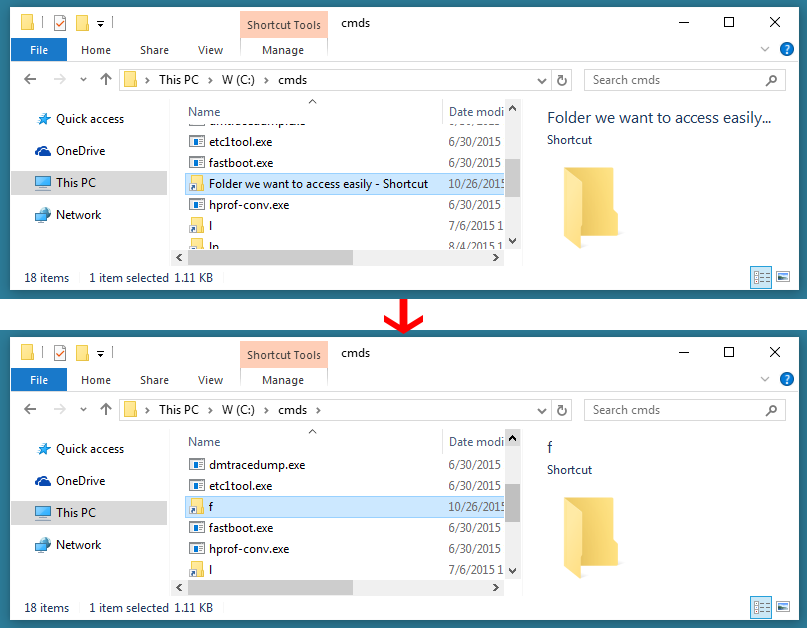
Step 3. Rename it to something easy to remember and faster at typing. Filename is what we will be entering in run interface from now on to access that particular target.

Note: we can create shortcuts for various targets files/folder/software/commands with parameters. Possibilities are endless.
Congratulations!, now you have completed the steps of creating shorter and faster access of targeted files/folders/software. We can verify it by typing the shortcut we created into run interface.
You can add as much shortcuts in this folder and make accessing files/folders/ software easy and faster the pro way.
References:
1 https://msdn.microsoft.com/en-us/library/windows/desktop/bb776899(v=vs.85).aspx
2 https://technet.microsoft.com/en-us/library/ee692671.aspx
3 http://www.shortcutworld.com/en/win/Windows-Run-Commands.html