


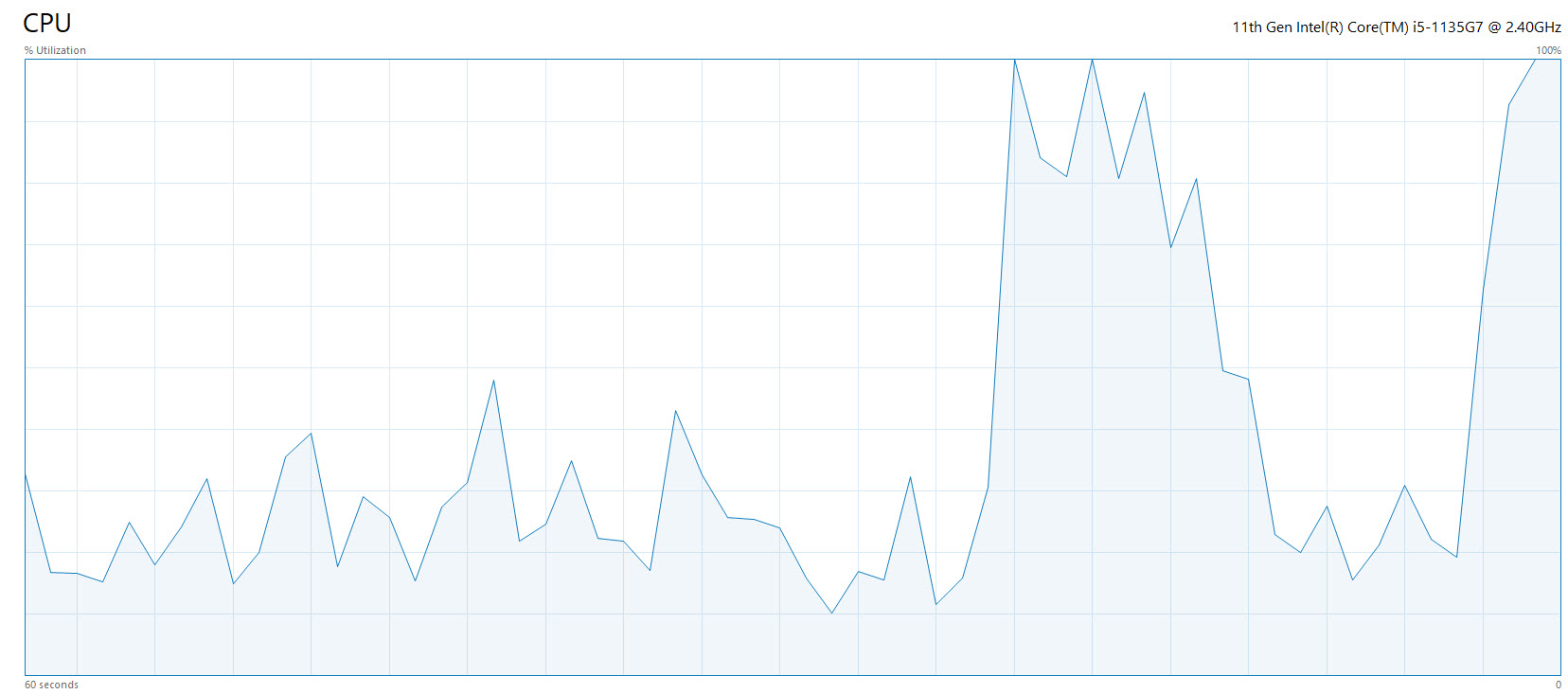
Got a that resourceful computer with a decent amount of memory, SSD storage and latest generation of that Intel chipsets; and your Windows 11 is still struggling to perform? To your surprise, Windows 11 being the latest operating system from Microsoft is still prone to slowdowns despite having plenty of resources. Worry not, with some useful steps mentioned here you can have a speedy Windows 11 computer.
Ensuring enough resources for Windows 11 computer
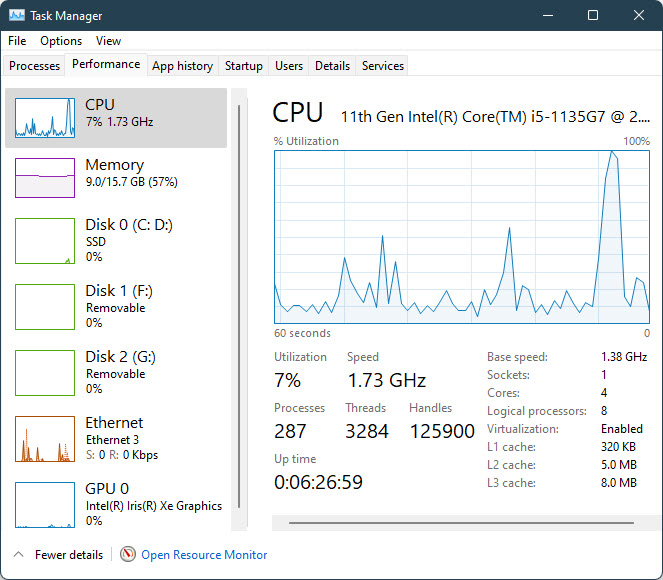
Reinstating your computer’s available resources, just ensure that an 8 GB of memory (RAM) and 240 GB of Solid State Drive (SSD) storage would perform best with anything around Intel’s i5 10th generation or so; we suggest even higher resources of at least 16 GB RAM here. These maybe little higher specs than what Microsoft tells us for Windows 11 to function; however, it is always good to have extra room for extra smooth operations.
Prevent nasty apps to run automatically every time you start using Windows 11 computer
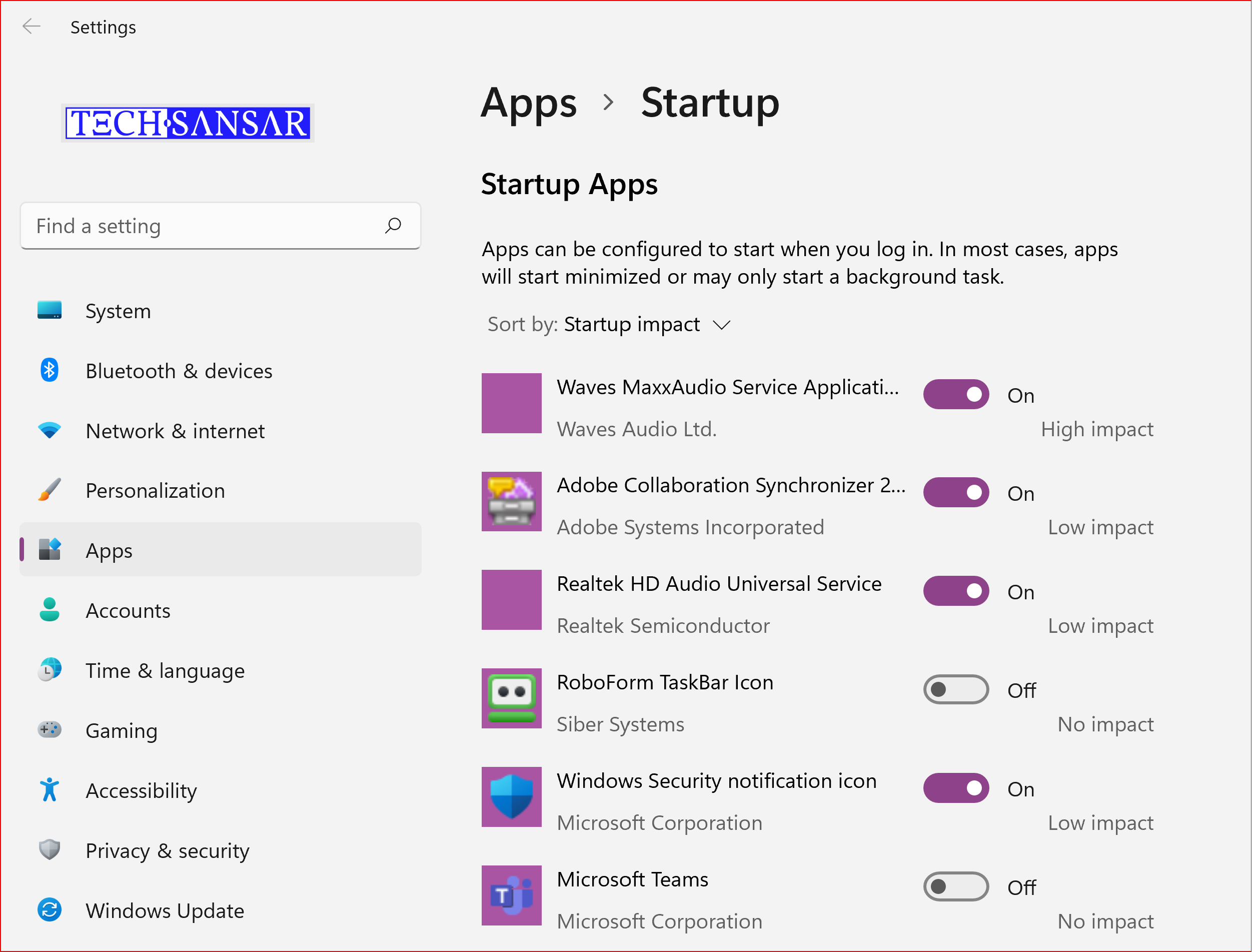
We may not realize or may have ignore or have been habituated to click those cancel or ignore buttons every time we start using Windows 11 computers, but these nasty applications always auto-starting or running on the background or not letting you shut them down consume lot of resources which you would need for your essential biz needs. You can check the startup impact each application or process has on your computer by visiting Task Manager (Alt + Ctrl + Del) or simply typing “Startup Apps” on the start menu.
https://techsansar.com/how-to/optimizing-windows-11-startup-time/
Enable that storage sense on your Windows 11 computer
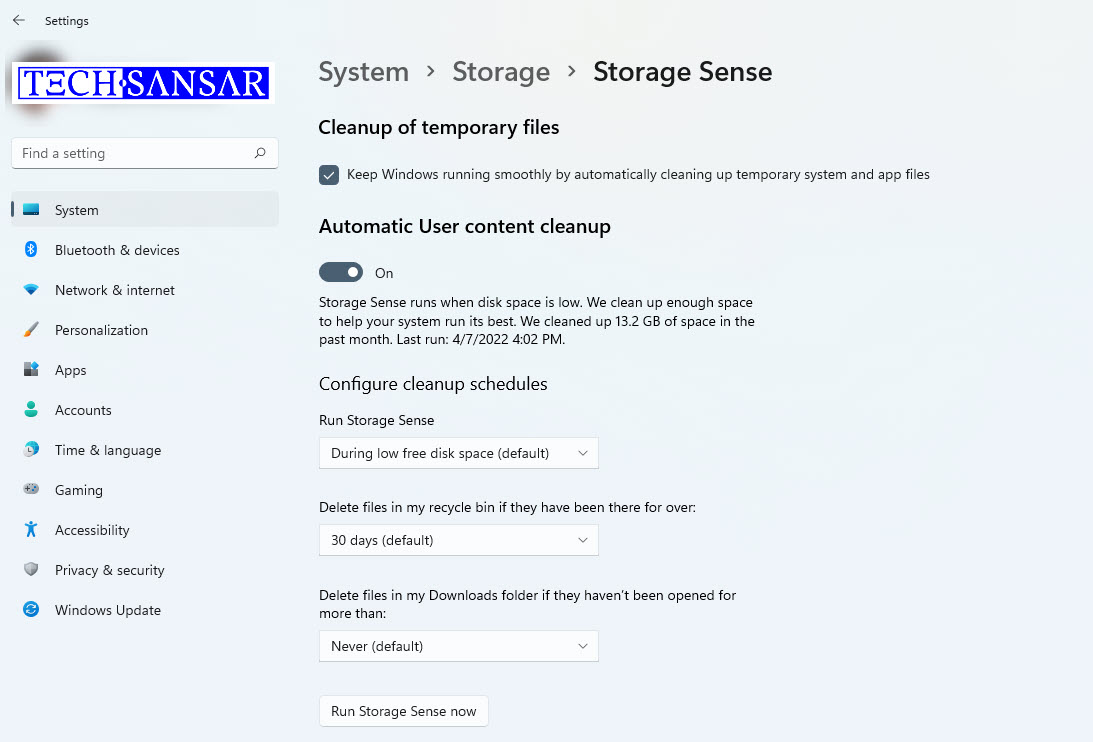
Our computers over the time generates temporary files for some good purposes but are usually good temporarily and getting rid of those temporary files or cache or prefetch mechanism is not always a thing to remember to do. However, Windows 11 provides a built-in tool to free up space and mostly provides some automates options to potentially speed up the computer from time to time. Just open “Storage Settings” from the start menu, and turn on the Storage Sense option. There are also cleanup recommendations and advance storage settings for you to act upon. These options are usually pretty easy and you can enable only the options you are comfortable with.
Uninstall those unused apps in Windows 11 computer
Often time we install software applications, use them a couple of times when needed and we never need them or we forget about them. Even though the storage tool mentioned previously helps automate uninstalling apps we don’t need or use for a considerable duration; we could still check manually for unused apps and speed up the Windows 11 computer. The concept here is simple – there might be dozens of processes running in the background by the apps which you never needed and getting rid (completely uninstalling or deleting) those apps help you speed up the computer.
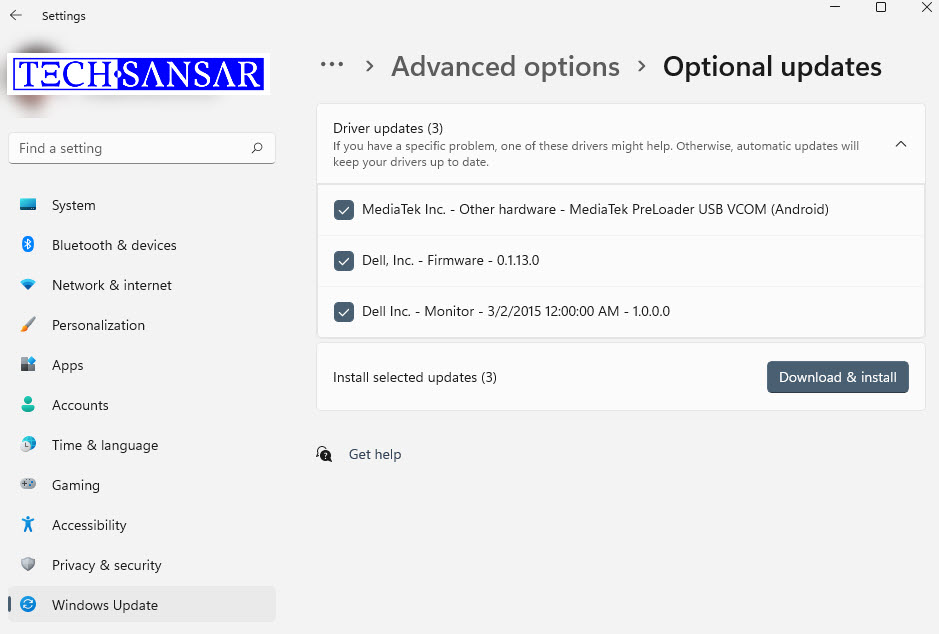
Update your Windows 11 computer
Gone are the days when you used to have a fresh computer and then your operating system never saw an another patch or an update – must had happened to many of you up to Windows 7 computers. However, Windows 11 constantly seeks to update to fix fixes or apply system or driver patches and device driver updates or anything that the system things could do better from its part. We suggest you to update not only essential Windows 11 system files but also other Microsoft software application updates and device drivers – even though optional (like your latest device driver of Intel Iris Xe Graphics could solve that frequently crashing issue of Adobe Creative Cloud suite!)
https://techsansar.com/windows/windows-11-what-we-know-so-far/
Periodically shutdown or restart your Windows 11 computer
Did you try restarting your computer? If you have a habit of leaving your Windows 11 computer into sleep, standby or hibernate over an extended period of time, you might want to give your computer a break. Periodically restarting – maybe once a week – or completely turning off (shut down) once every other week – will refresh your computer thereby fixing technical glitches that might be slowing down your computer.
These are six pretty basic and every one must know things to speed up the slowing Windows 11 computers. There are many specific and techie part to addressing sluggishness of Windows 11 which we shall cover in other articles.
https://techsansar.com/computing/fix-for-slow-brave-browser-windows-11/





