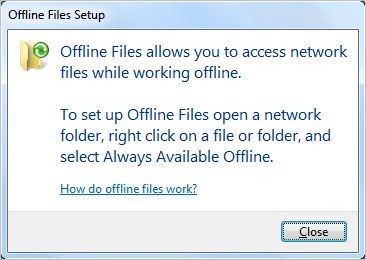
 Windows 7 allows users to access network files while working offline. If you’re trying to access a file on a remote network computer that happens to be offline continuously, there is a way to excess the files of that network computer.
With offline files in Windows 7, you can access copies of your network files even when your computer isn’t connected to the network. Working with offline files is easy. Read this article covering more services : Access your files anywhere, remotely
 You can start either by visiting the Sync Center ( Control PanelAll Control Panel ItemsSync CenterSync Setup ) in Control Panel or open a network folder, right click on a file or folder, and select Always Available Offline. That’s it.
Controlling Offline Files:
You can manage Offline Files on your Windows 7 machine once Offline Files are being saved/synced. One the Sync Center left bar, lick Manage offline files which will lead you to a wizard that describes about whether to enable to disable offline files, change limits of offline files, or delete temporary files, encrypt or whatever you like.
 On the General tab, you can control availability of Offline files. Use offline files to keep copies on your computer of files stored on the network. This allows you to work with them even when you are not connected to a server is unavailable.
You can disable or enable offline files. For synchronizing conflicts on offline files, open Sync Center. Of view your offline files directly.
On Disk Usage tab, handle how much disk space is currently used and available for storing offline files on this computer. You can set how much percent of the total available hard disk space should be allocated.
If you were thinking to protect your offline shared network files, then the Encryption tab allows you to encrypt your offline files. If you encrypt your offline files, you encrypt only the offline files stored on your computer, and not the network versions of the files. You do not need to decrypt an encrypted file of folder stored on your computer before using it. This is done automatically.
Another benefit is that on slow connection, sync center can automatically work offline for making your network files available to you. When working offline on a slow connection, you can work online again by pressing the “Work online” button in Windows Explorer. After doing so, Offline Files will wait 5 minutes before checking for a slow connection.
At last know what you can achieve using offline file usage:
- Encrypt your documents and remain safe on network
- Control how much disk space to use to store offline files
- Remain unaffected by network outages
- Work with files while you are away from the network
- Easily sync with network files
- Boost your efficiency when working over a slow connection
Note: Portion of this article and working of the offline file is available on Windows Help and Support center.