

• Login
  • Register
Sunday, July 19, 2026
Generate QR Codes
Free PDF Tools
Free Web Audit 360
TechSansar.com
  • Services
  • Top Posts
  • Nepali IT
  • Startups
  • Tech News
  • Categories
    • News
      • Tech
No Result
View All Result
TechSansar.com
  • Services
  • Top Posts
  • Nepali IT
  • Startups
  • Tech News
  • Categories
    • News
      • Tech
No Result
View All Result
TechSansar.com

6 simple yet effect ways to speed up your Windows 10 computer

Here we present amazingly simple but highly effective ways to increase speed of your Windows 10 computer. Try these steps now.

TechSansar Editor by TechSansar Editor
February 2, 2021
in How To, Microsoft, Tech News, Tips & Tricks
A A
3
Speed up pc

Speed up pc

With the latest update or with Microsoft Windows in general, your pc might run slow over the time of gradual usage. However, worry not, you can increase your pc speed on Windows 10 with some amazingly simple setting tweaks. Let’s look after some of the settings that can improve the performance of your Windows 10 computer.

Techniques to increase your pc speed in Windows 10

1. Tweak that Power Plan Settings in Windows 10

With the use of the Power Saver plan, it reduces the performance of the PC. Now let’s see where we can change it.

Head toward the Power Option from the Control Panel on your Windows Machine as shown below and choose High Performance.
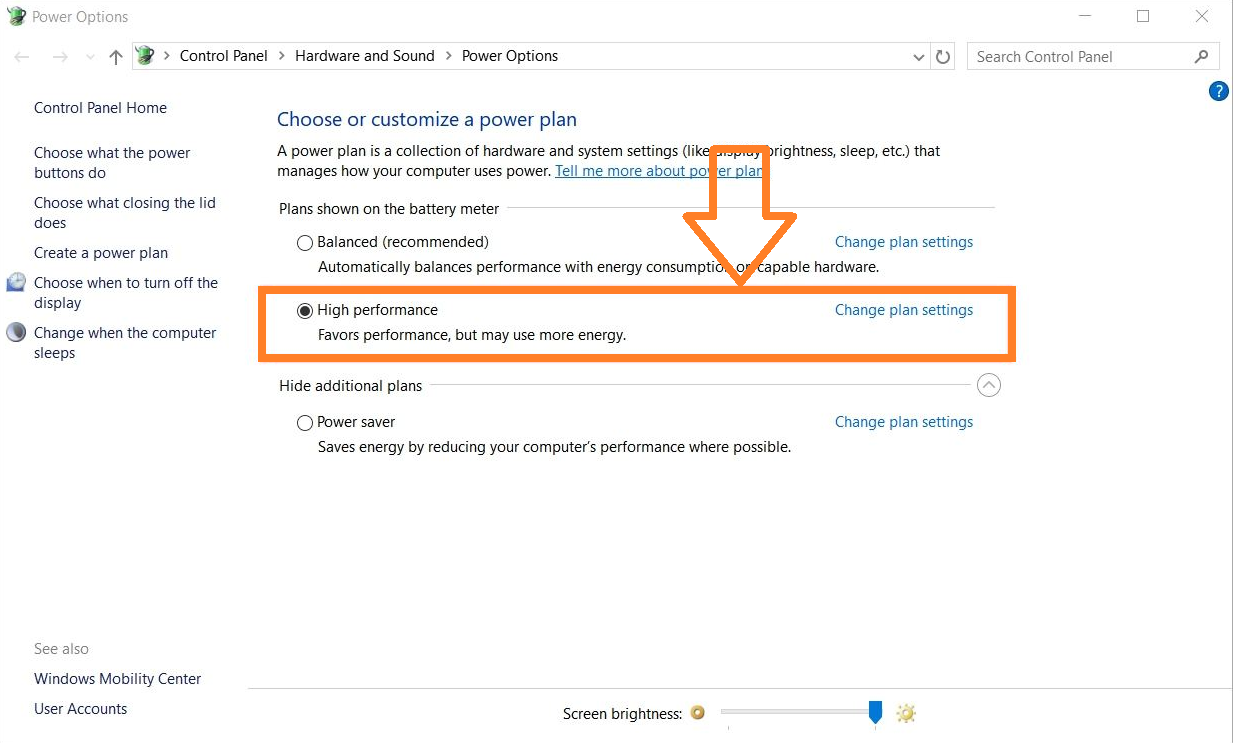
Check the Power Options from Control Panel or Settings to adjust your Windows 10's power plan to speed up the performance
Check the Power Options from Control Panel or Settings to adjust your Windows 10’s power plan to speed up the performance

Do note that high performance consumes high power, so this is sort of tradeoff between your Windows 10’s speed and power consumption. But good to play with different options to check with what your experience would be.

2. Security and Maintenance

Another reason for slowing pc is the lack of maintenance. Simply go to Control Panel -> System and Security -> Security and Maintenance. Start maintenance or schedule maintenance activities to run on your computer to speed up your Windows 10 by resolving the problems.
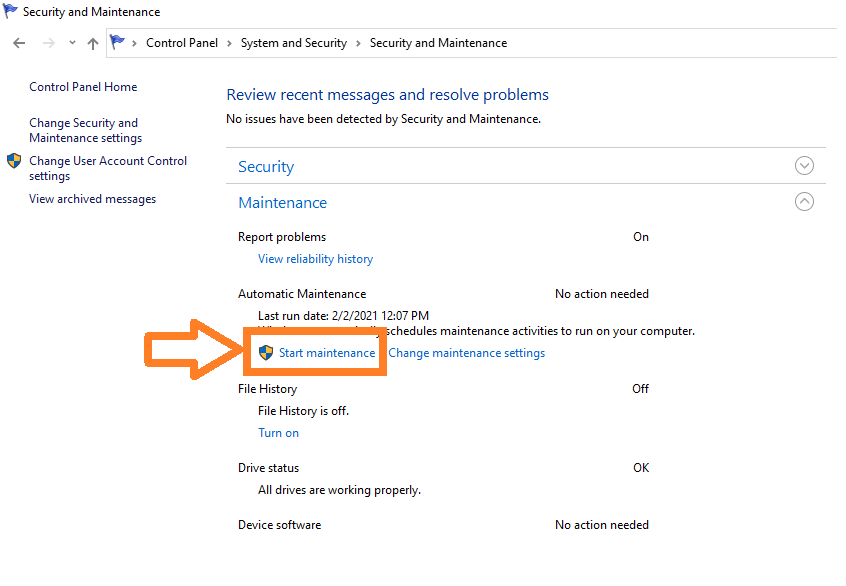
Start maintenance of your Windows 10 for speed and performance by resolving problems

Check for the Automatic Maintenance, if the maintenance is of a long time ago choose the Start Maintenance option. In case of any recovery needed, this maintenance helps to recover the file and helps boost up the performance. You can even change the Maintenance Setting from the Change maintenance settings right beside the Start maintenance.

 3. Turn off Tips and Notification

For turning off the Tips and Notification setting we need to go to System Settings as shown below.

Step 3.1: Click on the setting icon from the Start menu.
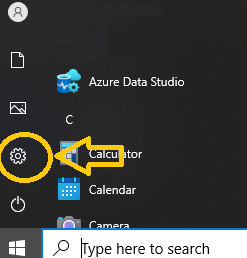
setting-windows-10

Step 3.2: Click on the System setting
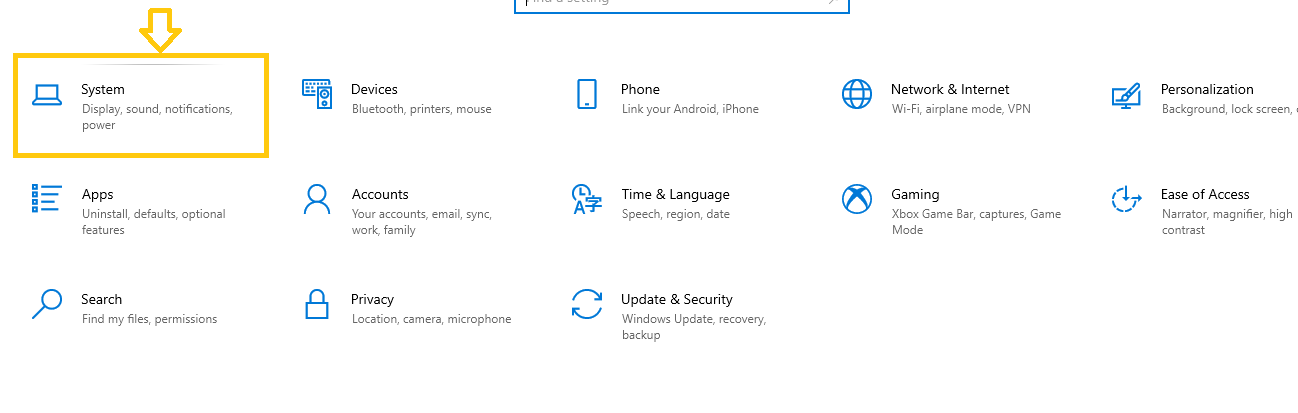
system-setting-windows-10

Step 3.3: Click on the Notifications & actions menu
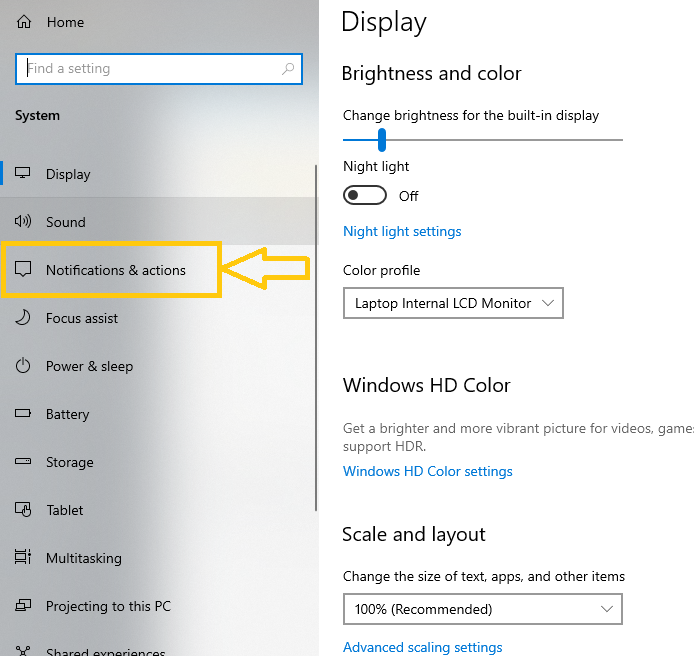
notification-action-windows-10

Related Post

Understanding the TikTok Ban in Nepal: Context, Implications, and the Global Digital Landscape #TikTokBanNepal

Apply now for the $25,000 UNESCO Prize for Your Education Technology Solution

Daraz announces the biggest sale of the year – Up to 80% off, mega vouchers up to 11,111 & more

6 things you can do to speed up your Windows 11 computer

Step 3.4: Untick the tips and tricks option
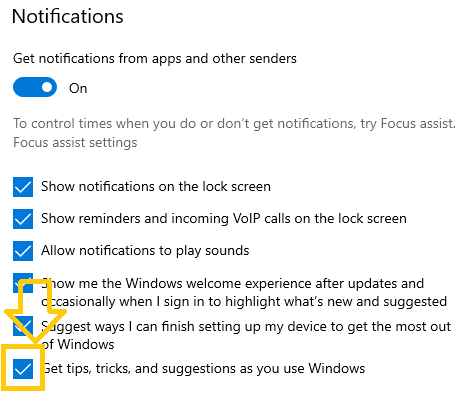
untick-tips-tricks-notification-windows-10

Step 3.5: Choose which Notification senders are allowed
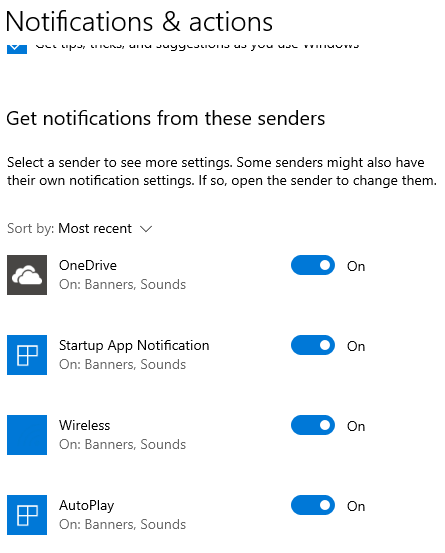
notification-senders-windows-10

4. Disable Visual Effects

Visual effects look good with the windows but with the cost of system performance. To disable these visual effects, we first need to go to the System Settings as shown in the above section and follow the following steps.

Step 4.1: Go to the About menu
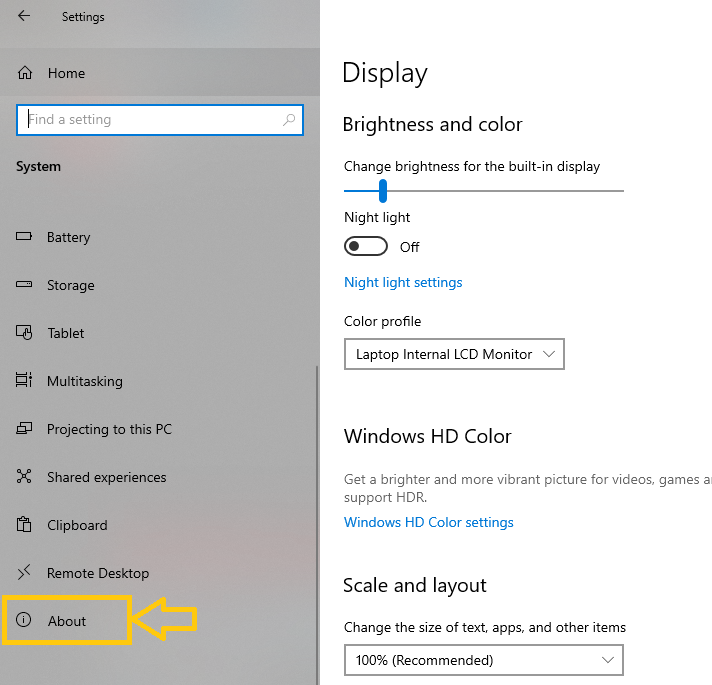
about-visual-effects

Step 4.2: Go to Related Settings and select Advanced system settings
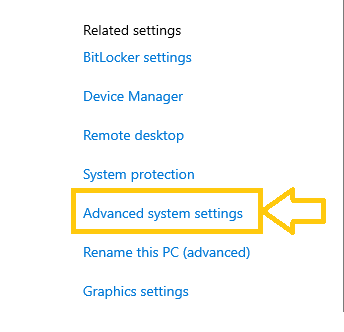
advanced-system-settings-windows-10

Step 4.3: With the Advanced tab select click on Settings…
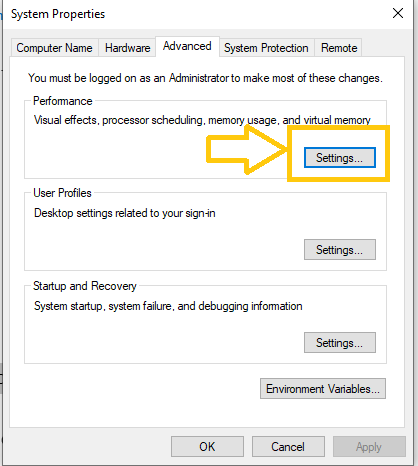
advanced-tab-settings-windows-10

Step 4.4: With the Visual Effects tab selected select Adjust for Best Performance
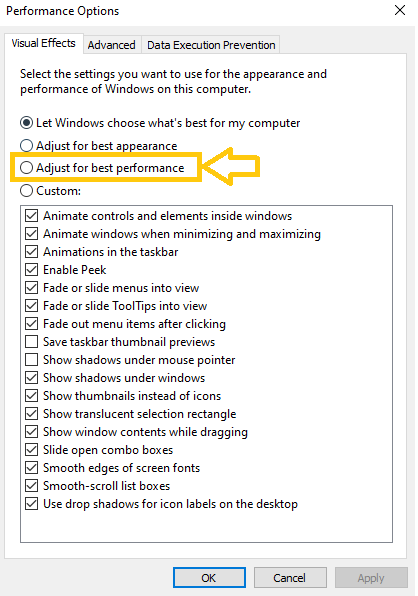
visual-effects-windows-10

You can customize these effects as per your needs also, rather than just focusing on performance and visual appearance. Give these options a try to have a better Windows 10 experience.

5. Increasing Virtual Memory Paging File Size

If you are running on low memory (aka RAM), then it is always a good option to increase the virtual memory from the hard drive. We will continue from Step 3 of the Visual Effects section.

advanced-tab-settings-windows-10

After we click setting, we see the following screen and we should click on the Advanced tab.
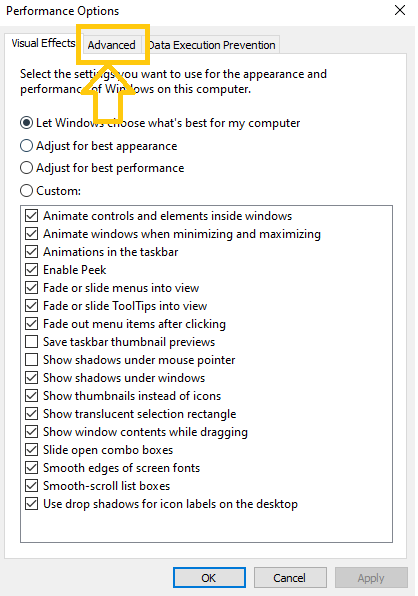
performance-advanced-tab-windows-10

As you click on the advanced settings following screen will appear and then click on the Change option.
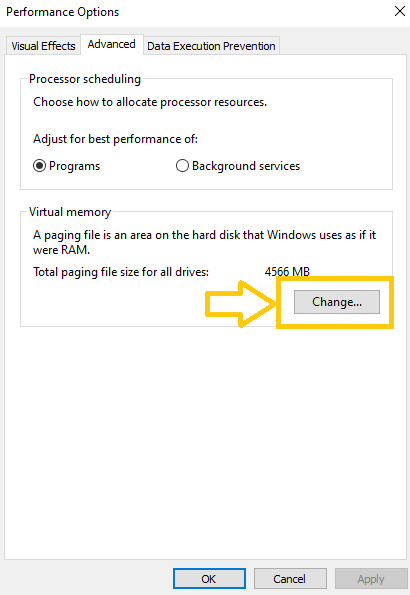
changing-vram-windows-10

After you click on change following screen will appear and click on the Automatic option.

virtual-memory-windows-10

6. Disable Startup Apps from Windows 10

With a bunch of apps enable during the start-up has a negative impact on system performance. To increase your pc speed disabling unwanted apps during startup is a good thing.

Step 1: Head over to Task Manager and select the Startup tab as shown below

startup-app-windows-10

You will see a list of applications with the status of Enabled or Disabled state. Then you can simply right click and change the status as shown below.

increase your pc speed in windows 10

Startup application are those applications which startup and runs in the background as the windows load and have an impact on the performance of the system. So, disabling those application increases the system performance.

That’s all. Which of these 6 different tweaks did you try or meet your Windows 10 speeding up requirement? Or have we missed some, kindly share in the discussion part.

Useful Keyboard Shortcuts for Windows 10

Tags: how to speed up your computerWindows 10
Share213Tweet133Send
Previous Post

Mi Air Charging – Insane Revolution

Next Post

Samsung’s Flagship Phones Prices in Nepal

Related Posts

TikTok ban in Nepal over issues of social harmony
Social Networking

Understanding the TikTok Ban in Nepal: Context, Implications, and the Global Digital Landscape #TikTokBanNepal

In a significant move reflecting the complex interplay of technology, security, and social values, the government of Nepal decided on...

by tsGeek
July 24, 2024
Technology in Education Illustration
Tech News

Apply now for the $25,000 UNESCO Prize for Your Education Technology Solution

If you have an education technology solution that uses digital technology to improve education and provide equal access to quality...

by tsGeek
July 24, 2024

Comments 3

  1. Pingback: Windows 11 - what we know so far about Microsoft Windows 11
  2. Mia Charlotte says:
    5 years ago

    Startup applications are those applications that startup and runs in the background as the windows load and have an impact on the performance of the system. So, disabling those application increases the system performance.

  3. chinobazaar says:
    4 years ago

    Awesome post

    You can also visit our site.

Recent News

Gen Z Protest Kathmandu 2025

July 4, 2026
The Launch That Moved Syuchatar: YetiCloud.AI and the Night Nepal’s Compute Policy Went Public

The Launch That Moved Syuchatar: YetiCloud.AI and the Night Nepal’s Compute Policy Went Public

July 4, 2026
Illustrating Sovereign AI Compute in Nepal Syuchatar with circuitary

Syuchatar in Regional Context: A Policy Commentary on Sovereign AI Compute

May 31, 2026
Technical explainer on Nepal's announced Sovereign AI Compute Center at Syuchatar. What Budget 2083/84 specified, what it didn't, and the four design questions that decide its outcome.

Nepal’s Sovereign AI Compute Center at Syuchatar: A Technical Explainer

May 30, 2026
Hostinger
  • News
  • Tech
  • Event
Generate free QR Codes with QRSansar

TechSansar.com, ICT For Media Pvt Ltd, Regd #249079/077/078, VAT #609868175.
By continuing to use this site, you agree to our cookies and privacy policies.
Here is our Do Not Track (DNT) Guide. Hosted on a VPS and uses this free PDF tool. You can also subscribe to our newsletter.
Creating tech contents for the b̶o̶t̶s̶ humans since 2009 • Team TechSansar • ICT4M with ❤ from Nepal

Welcome Back!

Login to your account below

Forgotten Password? Sign Up

Create New Account!

Fill the forms below to register

All fields are required. Log In

Retrieve your password

Please enter your username or email address to reset your password.

Log In
No Result
View All Result
  • Home page
  • Shop peripherals
  • Buy software
  • Featured articles
  • My account

TechSansar.com, ICT For Media Pvt Ltd, Regd #249079/077/078, VAT #609868175.
By continuing to use this site, you agree to our cookies and privacy policies.
Here is our Do Not Track (DNT) Guide. Hosted on a VPS and uses this free PDF tool. You can also subscribe to our newsletter.
Creating tech contents for the b̶o̶t̶s̶ humans since 2009 • Team TechSansar • ICT4M with ❤ from Nepal



