

• Login
  • Register
Sunday, July 19, 2026
Generate QR Codes
Free PDF Tools
Free Web Audit 360
TechSansar.com
  • Services
  • Top Posts
  • Nepali IT
  • Startups
  • Tech News
  • Categories
    • News
      • Tech
No Result
View All Result
TechSansar.com
  • Services
  • Top Posts
  • Nepali IT
  • Startups
  • Tech News
  • Categories
    • News
      • Tech
No Result
View All Result
TechSansar.com

[How to] Update & recover multiple iOS devices offline

ts by ts
January 4, 2015
in Tutorials
A A
0

Apple might seem infamous for their inability to let multiple iOS devices get updated with a single device updating to their latest OS. If you have more than one iOS devices say a combination of two iPhones and looking to update to the latest iOS version 8.1.2, what most people would do is check for the huge gigabyte Apple updates and download it to their each iPhone individually. Hence, the rise in global petabytes used! The same applies to other iOS devices updating and recovering them, but fear not with a small work around you can update and recover multiple iOS (same model/version) devices that too offline saving your time and bandwidth.

iPhone connection to iTunes

However, there is work around to update (or recover) multiple iOS devices using the same update downloaded for one device – hence offline updating of other similar devices. Follow these steps, in this example we use an universal unlocked iPhone exhibiting an error “There is no SIM card installed in the iPhone you are attempting to activate. Please disconnect and insert a SIM card in the iPhone.

1. Open iTunes and connect your iPhone that requires update or recovery to the PC.
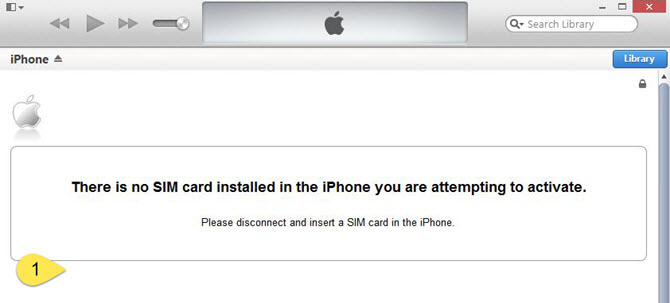
Erroneous iPhone that requires restoring

2. Once you download that entire GB (or sometimes few hundred MB) of iOS restore file (IPSW firmware) automatically done from the Apple’s official website. Now that you update your iPhone’s available update or recovery option update from the iTunes dashboard that is displayed after connecting iPhone to the PC.

However, such automatic download do not always work, say when you have a slower connection or you are on a metered connection. In such cases, iOS recovery or restore IPSW firmware can be downloaded directly from many websites, one is this.

When you place an IPSW file in the Firmware folder, Apple Configurator does not download that version of the software from the Internet. However, if iTunes has already downloaded that version to the user’s iTunes Library, Apple Configurator uses the version in the iTunes Library. ~ Official Apple Statement

Typical Apple Firmware folder specified from iTunes is available at

Related Post

How to reduce background noise during Microsoft Teams or Zoom meetings

Remove add-in services from Outlook, LeadBoxer as an example

Fix for “Sorry, another account from your organization is already signed in on this computer.”

Create Watermark of image using PHP

C:/Users/USER/AppData/Roaming/Apple Computer/iTunes/iPhone Software Updates

While the iTunes media folder (not used for automatic download of the IPSW firmware)

iTunes>iTunes Media>Automatically Add to iTunes

So, you are required to place your downloaded IPSW firmware recovery file to this file in AppData folder (complete folder as mentioned above.)
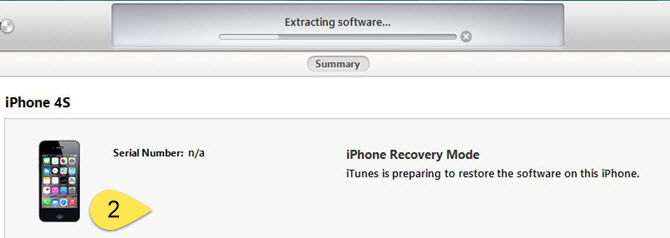
iPhone recovery mode - extracting software
iPhone recovery mode – extracting software
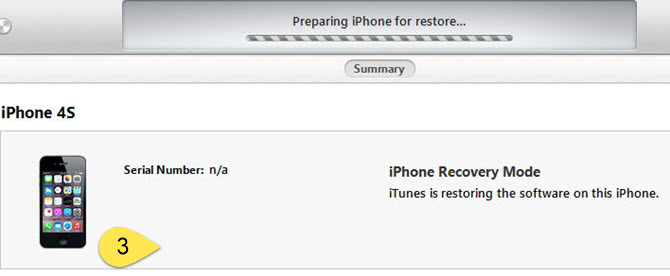
iPhone recovery mode - Preparing iPhone for restore
iPhone recovery mode – Preparing iPhone for restore
 

3. iTunes now prepares to extract this firmware recovery file, screenshot shown.

4. After extracting IPSW file, iTunes prepares iPhone for automatic restore.

5. When Apple verified iPhone restore, your iPhone will be successfully restored or upgraded with message “Your iPhone has been restored to factory settings, and is restarting. Please leave your iPhone connected…” iTunes home page will finally display information about your iOS device.

iPhone successfully restored to factory settings

Now, you can use the same downloaded iOS firmware upgrade or recovery IPSW file to apply to multiple iOS devices. This avoids complete downloading of the huge firmware file.


Block unwanted SMS in iPhone (prior to iOS 7)

Tags: iosiPadiPhoneSupport
Share212Tweet133Send
Previous Post

Low cost Android One Smartphones launches in Nepal

Next Post

Create a free Apple ID for iOS without Credit Cards [How to]

Related Posts

Reduce background noise during Microsoft Teams or Zoom meetings
How To

How to reduce background noise during Microsoft Teams or Zoom meetings

In this tutorial, we present how to reduce external noise from your microphone during Microsoft Teams and Zoom sessions. We...

by TechSansar Editor
May 20, 2021
Permanently Remove LeadBoxer from Outlook
How To

Remove add-in services from Outlook, LeadBoxer as an example

If you use Outlook email as a part of Microsoft 365 services, you might have noticed that on your desktop...

by TechSansar Editor
January 29, 2021

Recent News

Gen Z Protest Kathmandu 2025

July 4, 2026
The Launch That Moved Syuchatar: YetiCloud.AI and the Night Nepal’s Compute Policy Went Public

The Launch That Moved Syuchatar: YetiCloud.AI and the Night Nepal’s Compute Policy Went Public

July 4, 2026
Illustrating Sovereign AI Compute in Nepal Syuchatar with circuitary

Syuchatar in Regional Context: A Policy Commentary on Sovereign AI Compute

May 31, 2026
Technical explainer on Nepal's announced Sovereign AI Compute Center at Syuchatar. What Budget 2083/84 specified, what it didn't, and the four design questions that decide its outcome.

Nepal’s Sovereign AI Compute Center at Syuchatar: A Technical Explainer

May 30, 2026
Hostinger
  • News
  • Tech
  • Event
Generate free QR Codes with QRSansar

TechSansar.com, ICT For Media Pvt Ltd, Regd #249079/077/078, VAT #609868175.
By continuing to use this site, you agree to our cookies and privacy policies.
Here is our Do Not Track (DNT) Guide. Hosted on a VPS and uses this free PDF tool. You can also subscribe to our newsletter.
Creating tech contents for the b̶o̶t̶s̶ humans since 2009 • Team TechSansar • ICT4M with ❤ from Nepal

Welcome Back!

Login to your account below

Forgotten Password? Sign Up

Create New Account!

Fill the forms below to register

All fields are required. Log In

Retrieve your password

Please enter your username or email address to reset your password.

Log In
No Result
View All Result
  • Home page
  • Shop peripherals
  • Buy software
  • Featured articles
  • My account

TechSansar.com, ICT For Media Pvt Ltd, Regd #249079/077/078, VAT #609868175.
By continuing to use this site, you agree to our cookies and privacy policies.
Here is our Do Not Track (DNT) Guide. Hosted on a VPS and uses this free PDF tool. You can also subscribe to our newsletter.
Creating tech contents for the b̶o̶t̶s̶ humans since 2009 • Team TechSansar • ICT4M with ❤ from Nepal



