

• Login
  • Register
Sunday, July 19, 2026
Generate QR Codes
Free PDF Tools
Free Web Audit 360
TechSansar.com
  • Services
  • Top Posts
  • Nepali IT
  • Startups
  • Tech News
  • Categories
    • News
      • Tech
No Result
View All Result
TechSansar.com
  • Services
  • Top Posts
  • Nepali IT
  • Startups
  • Tech News
  • Categories
    • News
      • Tech
No Result
View All Result
TechSansar.com

Messages for Android and Web saves you tonnes of time and features!

TechSansar Editor by TechSansar Editor
July 26, 2024
in Applications
A A
0
Messages for Android and Google Chrome

Messages for Android and Google Chrome

If you are not using Google’s Messages in Android, you are missing a great deal! If you happen to use Android and are usually in the Internet, then you can have your entire SMS in your web browser with the ability to send and receive them. You can send and receive text messages, photos, voice messages, and video using Messages – and for free if you use the Chat feature.

Device Pairing with Messages

Install the Messages app, open it by clicking the three dots (or vertical ellipsis.) Tap “Device Pairing” and on your web browser open messages.google.com and then tap QR code scanner on your phone’s Messages app. You can pair multiple browsers if you want.
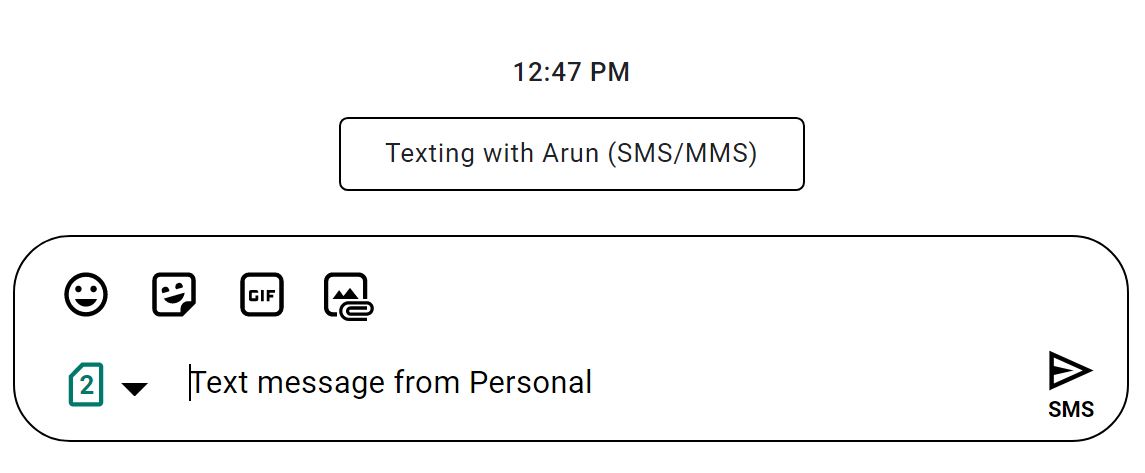
Just keep your phone online. Once your phone is paired so you can send & receive messages on this device. To use less data, connect your phone to Wi-Fi.
Send SMS from Web using Messages app
Move to the browser and navigate to https://messages.google.com/web/conversations to continue your Android based Messages or text messages (SMS and MMS.)

Messages uses secure, federated technology so you can get better, more personalized smart features, such as Smart Reply and other assistive suggestions, while keeping your conversations private on your phone.
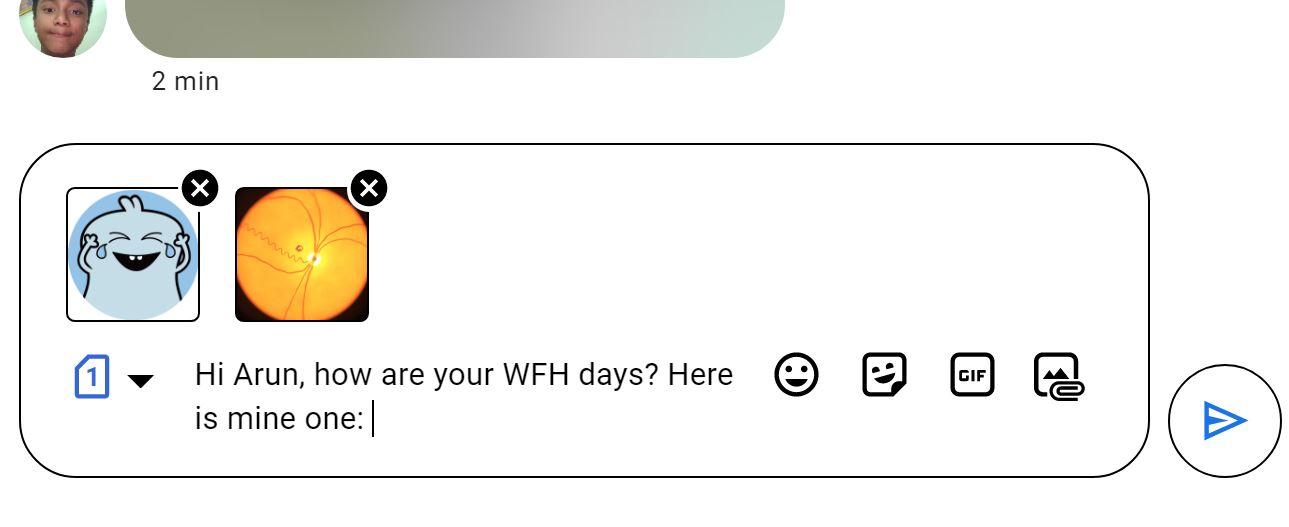
Sending media rich chat messages via Messages app

Chat or free SMS with Messages

You can send and receive text messages, photos, voice messages, and video using Messages. If your network carrier supports, you can use Messages app to send free SMS which Google calls it Chat. You can use your computer or Android tablet to chat with your friends through Messages for web, which shows what’s on your Messages mobile app.
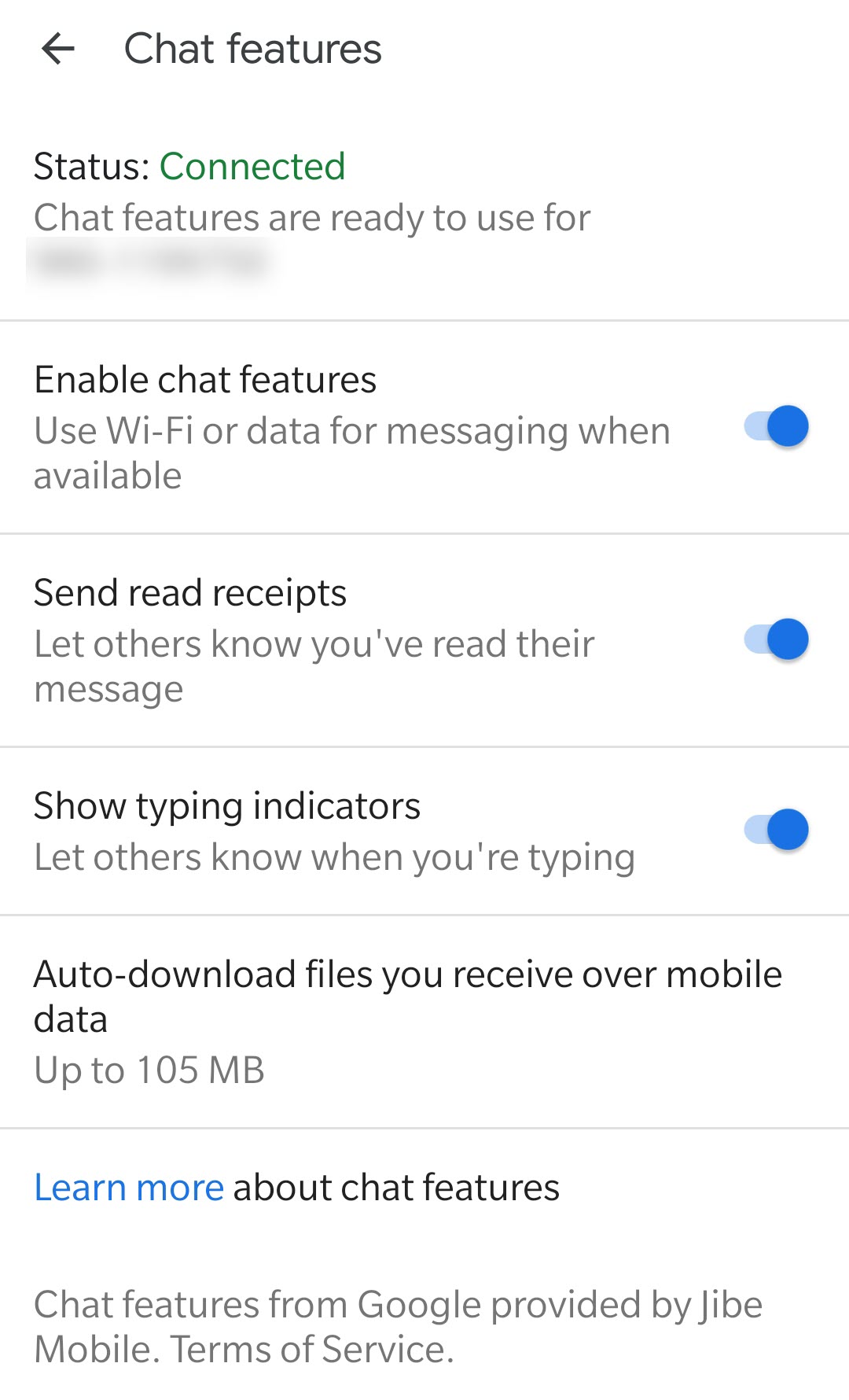
Enable Chat features in Messages app for free SMS or text messages

Messages for web sends SMS messages using a connection from your computer to your phone, so carrier fees will apply, just like on the mobile app but if you enable Chat feature in Messages by going to settings and then Chat features – you can chat with your friends and family for free using Internet connection.

Chat messages are delivered directly to the recipients at their mobile number just like regular SMS text messages.

Turn on chat features in Messages

If chat features are turned on, you can:

  • Send messages over Wi-Fi and mobile data, instead of SMS or MMS
  • Add people to group conversations
  • Find out when others are typing
  • Let others know you’ve read their messages
  • Share high-quality photos

To use these options, everyone in the Messages conversation must turn on chat features.

Related Post

Microsoft Forms Sync Update: Adapting to Microsoft’s New Approach for Excel Integration

Nagarik App is out of beta, introduces Nagarik profile QR scanner & more features

Spyier Review: The Best Spy App I Have Used

How to Catch a Cheating Girlfriend Effectively (100% Works)

Chat features are only available for certain devices, service providers, and carriers, including Jibe Mobile from Google.
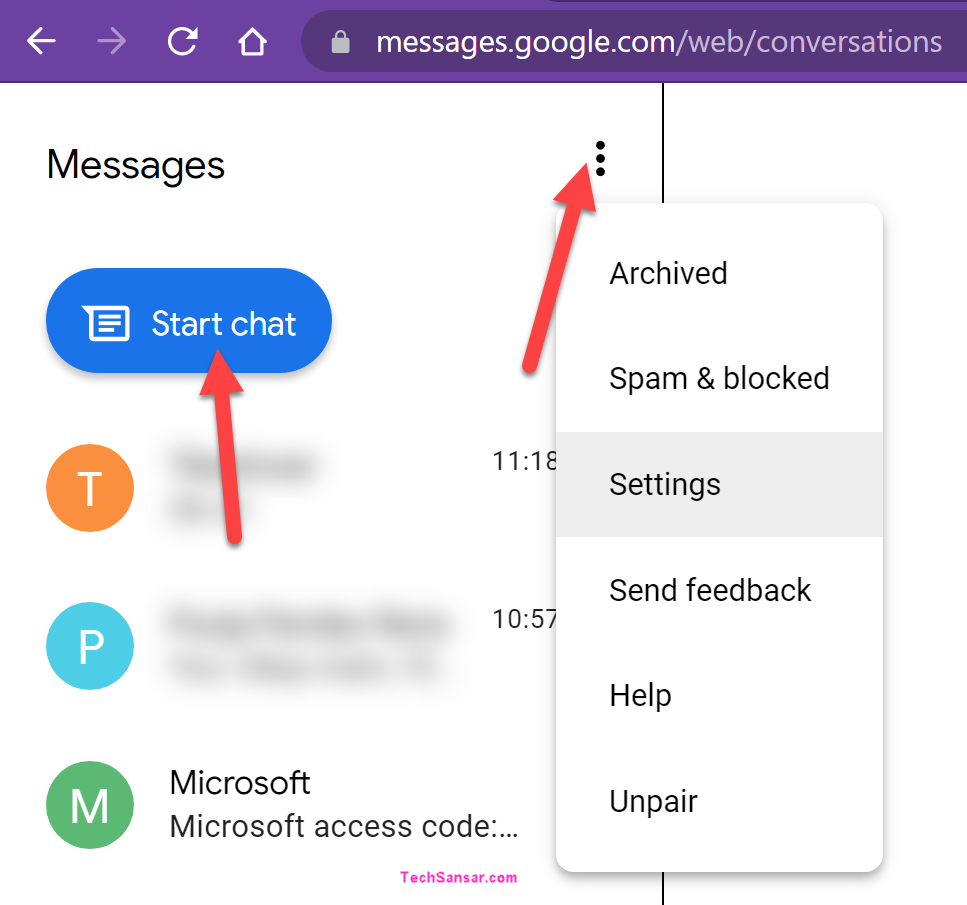
Messages conversations start chat settings

Features of the Messages App

These settings and features that the Google’s Messages app provides in Android are exactly the same in the web browser version, after all pairing is all meant for this.

  • You can opt for dark theme for Messages.
  • Remember the paired computer – works for multiple computers and browser pairing.
  • Remind you when your phone is using mobile data instead of Wi-Fi – this helps you save data and bandwidth specially with high volume messages and MMS transactions.
  • Enable high contrast mode and keyboard shortcuts for better accessibility.
  • Dedicated place for Archived messages or conversations.
  • Spam and blocked section – Messages also automatically checks if you are receiving message from Google Business listed businesses.
  • The best feature without any doubt is the Chat which we talked about in the earlier part of this post.

Messages app by Google for Android is always updating with new features – small or large and are usually helpful for a large number of people like us.

As of now, Messages app only supports the Chat feature for one SIM only if you have multiple SIM cards in your smartphone. This feature is also operator dependent.

So, which feature is your best with Messages or are your going to start using Messages if not already?
Tags: AndroidMessagesSMS
Share212Tweet133Send
Previous Post

How to reduce background noise during Microsoft Teams or Zoom meetings

Next Post

Windows 11 – what we know so far about Microsoft’s Windows 11?

Related Posts

Microsoft Forms Sync Update
Applications

Microsoft Forms Sync Update: Adapting to Microsoft’s New Approach for Excel Integration

In the ever-evolving world of technology, software updates often bring a mix of anticipation and adjustment. Microsoft, a leader in...

by Team TechSansar
January 3, 2025
Nagarik App new features
Applications

Nagarik App is out of beta, introduces Nagarik profile QR scanner & more features

As you already know that the Nepal government's (GoN) official service delivery mobile app "Nagarik App" has been published with...

by TechSansar Editor
May 2, 2021

Recent News

Gen Z Protest Kathmandu 2025

July 4, 2026
The Launch That Moved Syuchatar: YetiCloud.AI and the Night Nepal’s Compute Policy Went Public

The Launch That Moved Syuchatar: YetiCloud.AI and the Night Nepal’s Compute Policy Went Public

July 4, 2026
Illustrating Sovereign AI Compute in Nepal Syuchatar with circuitary

Syuchatar in Regional Context: A Policy Commentary on Sovereign AI Compute

May 31, 2026
Technical explainer on Nepal's announced Sovereign AI Compute Center at Syuchatar. What Budget 2083/84 specified, what it didn't, and the four design questions that decide its outcome.

Nepal’s Sovereign AI Compute Center at Syuchatar: A Technical Explainer

May 30, 2026
Hostinger
  • News
  • Tech
  • Event
Generate free QR Codes with QRSansar

TechSansar.com, ICT For Media Pvt Ltd, Regd #249079/077/078, VAT #609868175.
By continuing to use this site, you agree to our cookies and privacy policies.
Here is our Do Not Track (DNT) Guide. Hosted on a VPS and uses this free PDF tool. You can also subscribe to our newsletter.
Creating tech contents for the b̶o̶t̶s̶ humans since 2009 • Team TechSansar • ICT4M with ❤ from Nepal

Welcome Back!

Login to your account below

Forgotten Password? Sign Up

Create New Account!

Fill the forms below to register

All fields are required. Log In

Retrieve your password

Please enter your username or email address to reset your password.

Log In
No Result
View All Result
  • Home page
  • Shop peripherals
  • Buy software
  • Featured articles
  • My account

TechSansar.com, ICT For Media Pvt Ltd, Regd #249079/077/078, VAT #609868175.
By continuing to use this site, you agree to our cookies and privacy policies.
Here is our Do Not Track (DNT) Guide. Hosted on a VPS and uses this free PDF tool. You can also subscribe to our newsletter.
Creating tech contents for the b̶o̶t̶s̶ humans since 2009 • Team TechSansar • ICT4M with ❤ from Nepal



