• Login
  • Register
Tuesday, July 7, 2026
Generate QR Codes
Free PDF Tools
Free Web Audit 360
TechSansar.com
  • Services
  • Top Posts
  • Nepali IT
  • Startups
  • Tech News
  • Categories
    • News
      • Tech
No Result
View All Result
TechSansar.com
  • Services
  • Top Posts
  • Nepali IT
  • Startups
  • Tech News
  • Categories
    • News
      • Tech
No Result
View All Result
TechSansar.com

? Add emoji from your Keyboard in Windows 10

TechSansar Editor by TechSansar Editor
August 20, 2019
in Windows
A A
0
Windows 10 emoji keyboard

Windows 10 emoji keyboard

Related Post

Windows 11 – what we know so far about Microsoft’s Windows 11?

[How to] Create an UEFI bootable USB drive or DVD for Windows 10

The History of Windows – how did Microsoft Windows 10 evolved from Windows 1 in 20 years time?

Windows 10 is almost here, reserve your free license today.

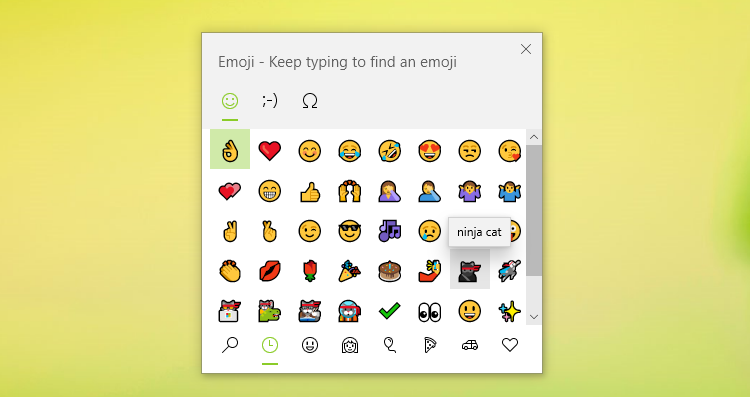
One of the features that Windows 10 has added to its recent update is the availability of emojis on input keyboard. No more surfing Emojipedia for common emojis to use on your everyday text – however you’ll still have to quick search the former for the vast array of all internationalized emojis available on the planet today. Windows logo key  + period (.) or semicolon (;) opens emoji keyboard.

Express yourself however and wherever you want, mentions Windows 10’s guided tutorial on the new feature upgrades. Press Windows logo key windows icon + period (.) to open an emoji panel. Use kaomojis to create faces with text, and symbols—like punctuation and currency—to make a statement.

This is how you get emojis in Windows 10. Microsoft’s emoji keyboard in Windows 10 works both in tablet mode and normal desktop mode. You just need the WIN + . shortcut to press whenever you want to use. Varieties of emojis, kaomojis and symbols are available in Windows emoji options. You can also visit our article on popular Windows 10 keyboard shortcuts to bring in your work productivity.
If you navigate to “Advanced keyboard settings” in the settings app, under Emoji panel you can select the option not to close the emoji panel automatically after an emoji has been entered.
You might also find other Keyboard shortcuts in Windows helpful or visit Microsoft’s official Keyboard shortcuts here.

Tags: Tips & TricksWindows 10
Share212Tweet133Send
Previous Post

7 Easy Fixes for Slow Wi-Fi, how to improve Wi-Fi signal coverage!

Next Post

Nepal's first and biggest Artificial Intelligence (AI) Expo 2019

Related Posts

Windows 11 desktop UI
Windows

Windows 11 – what we know so far about Microsoft’s Windows 11?

By now most of us have not only speculated Microsoft's announcement is about their next generation of Windows 11 operating...

by TechSansar Editor
June 19, 2021
BIOS booting options for UEFI USB Device, DVD/CDROM & EFI Network
Tutorials

[How to] Create an UEFI bootable USB drive or DVD for Windows 10

Most of the new and upcoming laptops that includes a trend of Windows 10 convertible hybrid devices and line of...

by TechSansar Editor
June 9, 2019

Recent News

Illustrating Sovereign AI Compute in Nepal Syuchatar with circuitary

Syuchatar in Regional Context: A Policy Commentary on Sovereign AI Compute

May 31, 2026
Technical explainer on Nepal's announced Sovereign AI Compute Center at Syuchatar. What Budget 2083/84 specified, what it didn't, and the four design questions that decide its outcome.

Nepal’s Sovereign AI Compute Center at Syuchatar: A Technical Explainer

May 30, 2026
Nepal budget 2083-84 on IT

Nepal Budget 2083/84: A Comprehensive Reference on the Tech, IT and Innovation Provisions

May 30, 2026
Success Story of a GovTech

Nepal’s Department of IT Saved Rs 98 Crore with Centralized A2P Messaging: A GovTech Success Story

December 31, 2025
Hostinger
  • News
  • Tech
  • Event
Generate free QR Codes with QRSansar

TechSansar.com, ICT For Media Pvt Ltd, Regd #249079/077/078, VAT #609868175.
By continuing to use this site, you agree to our cookies and privacy policies.
Here is our Do Not Track (DNT) Guide. Hosted on a VPS and uses this free PDF tool. You can also subscribe to our newsletter.
Creating tech contents for the b̶o̶t̶s̶ humans since 2009 • Team TechSansar • ICT4M with ❤ from Nepal

Welcome Back!

Login to your account below

Forgotten Password? Sign Up

Create New Account!

Fill the forms below to register

All fields are required. Log In

Retrieve your password

Please enter your username or email address to reset your password.

Log In
No Result
View All Result
  • Home page
  • Shop peripherals
  • Buy software
  • Featured articles
  • My account

TechSansar.com, ICT For Media Pvt Ltd, Regd #249079/077/078, VAT #609868175.
By continuing to use this site, you agree to our cookies and privacy policies.
Here is our Do Not Track (DNT) Guide. Hosted on a VPS and uses this free PDF tool. You can also subscribe to our newsletter.
Creating tech contents for the b̶o̶t̶s̶ humans since 2009 • Team TechSansar • ICT4M with ❤ from Nepal