


Most of the new and upcoming laptops that includes a trend of Windows 10 convertible hybrid devices and line of ultrabook series notebooks deploy thinnest form of storage drive in them – Solid State Drives. If you have recently purchased a new laptop, then you are likely not to use traditional Hard disk (HDD) rather SSD (Solid State Drives). Windows OS since Windows Vista support SSDs. This is upto the technological advancements brought in by SSDs that Windows 8 boots in a couple of seconds, however, this comes with little complexities for end users to directly operate on SSDs – one of them being the “UEFI bootable USB drive for Windows 10“. Read top 10 features of Windows 8 before proceeding.
This method of creating bootable Windows 10 USB drive equally applies whether you have SSD or HDD and an UEFI or not.
What are SSDs? Solid-state drives do not retain any kind of DISK inside them rather SSDs are mare electronic logic integrated circuitry (ICs) that holds significant amount of persistent data inside them bringing the fastest possible read-write technologies of data transfer.

While in traditional approach, users can simply use many tools to make Windows bootable USB drives and DVDs, this isn’t easy with SSDs. One of the most used applications to create a bootable Windows 7 USD /DVD is Windows 7 USD/DVD Download Tool which enables you to easily create bootable DVD or USB Keys for Windows 7 installation from the ISO file, this also works with Windows 8 installation ISO file provided that you are creating a bootable USB/DVD from a traditional HDD-installed Windows 7 and Windows 8. However, bootable DVDs and USB drives created with this application doesn’t work if you’re going to install Windows 8 in SSDs (not sure if newer HDDs demand this.) So, the solution to create an UEFI bootable USD drive for Windows 8 or 10.
Create UEFI Bootable USB Drive/DVD
UEFI, Unified Extensible Firmware Interface, is a newer interface specification that connects OS and the platform firmware, in easy way for us UEFI connects Windows 8 or 10 and the system BIOS firmware. The most geeky thing with UEFI is that it can define a boot manager inside it taking charge of all the OS bootloader and the essential drivers that are controlled by global variables stored in NVRAM, and making it too complicated for end-users to even clean boot Windows 8 or 10. However, this is highly responsible for faster response rate of booting Windows 8 or 10, and storing Windows 8 or 10 product license key, plus enabling devices to boot from removable devices (most appropriate example is Windows 8 or 10 enterprise edition’s Windows To GO.)
Initially installing Windows 8 or 10 can be slightly difficult for computing neophytes as this involves a different way to create an UEFI bootable USB drive or DVD, the formatting of which should be done via command line. Here is how to create an UEFI bootable USB or DVD in an easiest way for Windows 8 installation.
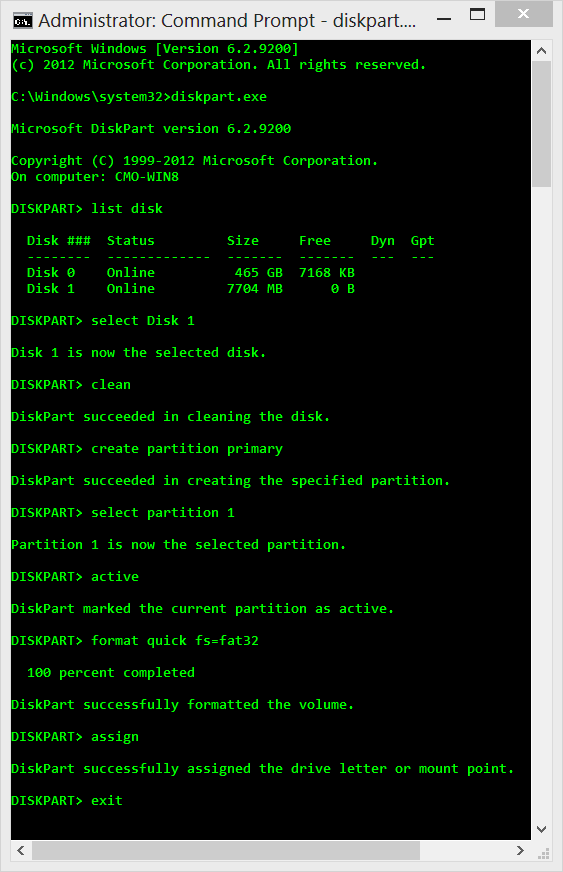
Open Command Prompt with Admin access, then diskpart. Follow a sequence of commands to format your DVD or USB Drive as illustrated below. Use a USB pen drive with at least 4 GB capacity.
Disk 0 is usually the default system disk, so select the proper USB disk (from list disk).
Select the disk, clean it, create a primary partition, then select this active primary partition to format in FAT32 file system, assign this partition to the disk, and voila there you have a UEFI disk. Wait, next is to load this UEFI capable disk with Windows 8 or 10 ISO files.
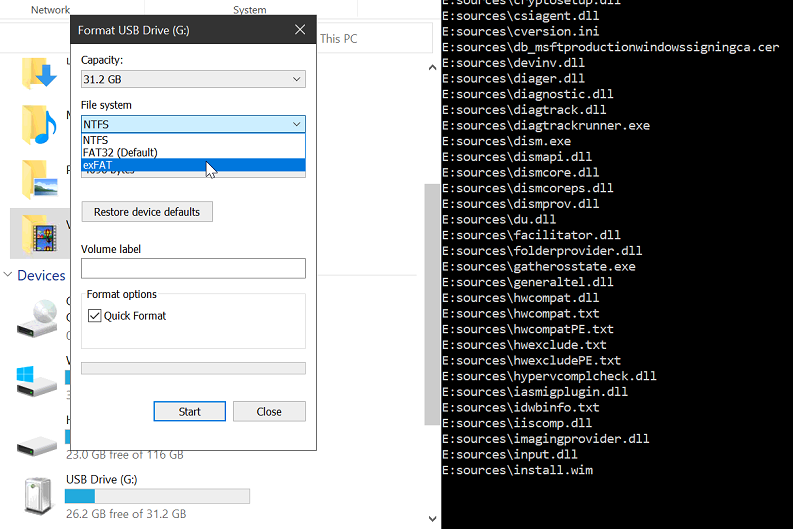
If you encounter “File creation error – The parameter is incorrect.” then check out for your USB drive storage volume. If it is larger than 4GB, you should format it in NTFS. Plus you always have exFAT – the new file system. Check the following USB Drive File System formatting options if you are unsure which option is available for your drive.
DISKPART > format quick fs=ntfs
Copying Windows 8 or 10 ISO content to bootable USB
So far so good, now mount the Windows 8 or 10 installation ISO file, then copy all the contents of this mounted Windows 8 drive to the DVD or USB drive we just worked on. Use this simple command line to copy the files (ensure you exit from diskpart in the command prompt before copying the files, also note the copying process can get stuck somewhere in the middle.)
xcopy H:* F: /s /e where H is the mounted Windows 8 ISO drive and F is the DVD or USB disk we just formatted.
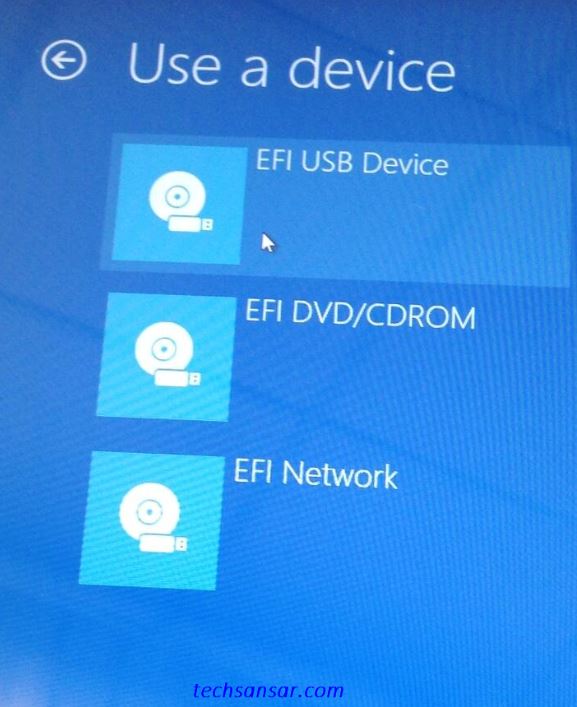
When ready boot your laptop from the DVD or USB drive just created, ensure you enabled the booting via removable drive in the BIOS setting of your laptop (check that UEFI bootable option.)
Here is a good guide “How to create Windows 8 or 10 installation bootable USB for UEFI Samsung Slate” and the same process can be applied for other Windows 8 or 10 slates and hybrid devices of similar specs. Visit our Windows 8 section to learn more about Windows 8 Tutorials and Tricks.







Very nice tutorial. Tyo command ko screenshot ta save garnu parne raichha.
Very nice tutorial. Tyo command ko screenshot ta save garnu parne raichha.