• Login
  • Register
Sunday, July 5, 2026
Generate QR Codes
Free PDF Tools
Free Web Audit 360
TechSansar.com
  • Services
  • Top Posts
  • Nepali IT
  • Startups
  • Tech News
  • Categories
    • News
      • Tech
No Result
View All Result
TechSansar.com
  • Services
  • Top Posts
  • Nepali IT
  • Startups
  • Tech News
  • Categories
    • News
      • Tech
No Result
View All Result
TechSansar.com

[How to] Type Nepali Unicode easily on your PC or Web – Google Input Tools Review

ts by ts
July 8, 2015
in Tutorials
A A
0
Type in Nepali Unicode Google Input Tools

Type in Nepali Unicode Google Input Tools

Most of us Nepali dream of expressing our views and words in Nepali Language i.e. Devanagari script both online and offline. And the age-old practice of using Preeti font (generically speaking!) still persist, while such traditional Nepali fonts are supported only on the desktop applications and not on the Internet or website. Say, you can’t write your Facebook status in Preeti font or Himali fontasy. In this tutorial, we will guide you how to type in Nepali Unicode easily on your PC (offline) or the web.

Type in Nepali Unicode Google Input Tools

Nepali Unicode vs Nepali Fonts

Although there are many Unicode converters (Preeti to Nepali Unicode converters!) out in web, they only allow users to type and convert on their website – meaning we are bound to stay on those converter websites or tools and then switch between the programs to copy and paste the conversion to our desired website or App.

But the technology has been improving and offering us new and innovative services day by day, and here the topic we are discussing today is all about Google Input Tools which allows us how to type Nepali easily and everywhere (NO NEED TO VISIT ANY UNICODE CONVERTER SITE AND DO COPY PASTE), since this app automatically converts every word we type into Nepali.

Here are few steps to help you install Google Input Tools (earlier was called Google Transliteration IME)  so that one can type in Nepali Unicode seamlessly in any software applications on your computer.

STEP : Go to http://google.com/inputtools/windows 

To download Google Input tools you need to visit the above given URL (Link). In that link you can see following page:
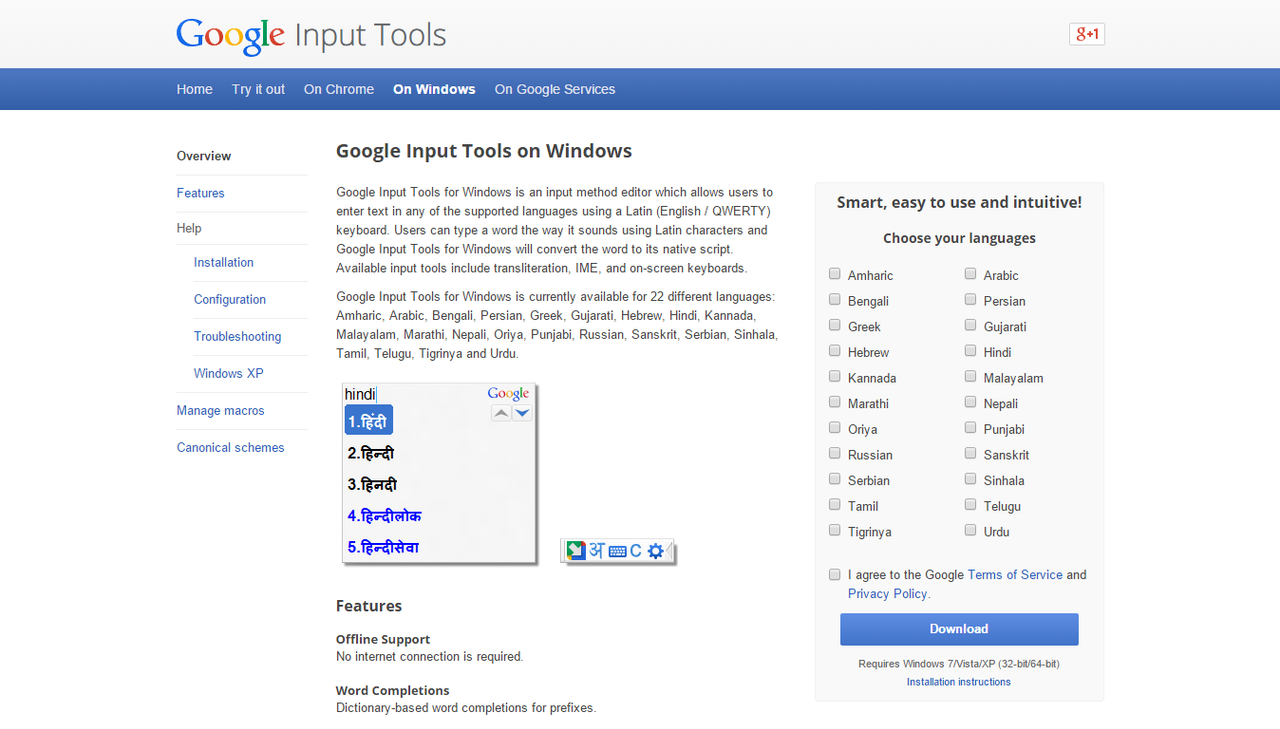
Google Input Tools for Windows download home page

After you get there check the Choose your languages box on the right side. Tick Nepali language and also don’t forget to tick in I agree to Google….  and click download. If you don’t got what I am trying to explain then Take a look at the image below:

Smart, easy to use and intuitive. Checked Options for Downloading the Google Input Tools
Got Everything Right Up-to here? then lets move to New Step.

Related Post

How to reduce background noise during Microsoft Teams or Zoom meetings

Remove add-in services from Outlook, LeadBoxer as an example

Fix for “Sorry, another account from your organization is already signed in on this computer.”

Create Watermark of image using PHP

STEP 2: Download Google Input Tools & Install

In the above step we reached up-to download button. After We clicked on Download button, a dialogue box will prompt asking you to download that file or not. Now Click on Download or Save file (whatever you get in your browser).

After Downloading the File, click on that file and run it. It will ask for administrative privileges, put your password of administrator user of your PC (if you have) and click on RUN. After that a dialogue box like below will appear.

Connecting to the Internet... Google Input tools download dialogue box
Connecting to the Internet… Google Input tools download dialogue box

After few moments of the previous connecting to internet dialogue box show-up, the real download will start now. Google fetch the download file and install automatically. After the download and installation of the Google input tools up-to here following box will show up.

Google Input tools installation complete.
After we downloaded that file, I will like to say congratulations to you for installing a New App to Write Nepali on your PC. But few steps are still remaining.

STEP 3: Enabling Google Input Tools

After your installation, now check the right side of your task bar. There you can see ENG text. Click on that and a option will display to choose the language input method. Click on Google Input Tools (Nepali) as in the picture below (feeling smarter! you can easily switch between your language preferences in Windows/Google Input Tools by pressing Windows Key + Space bar together.)
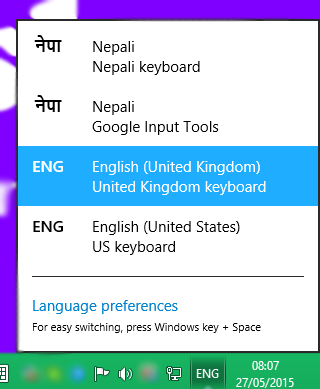
This is how you enable Google Input Tool in Windows Computer.

As I said before, Click on नेपा  NEPALI (Google Input Tools) and a small floating widget will appear on the bottom-right side of of your screen.

Dialouge box after enabling google input tools
Now Start Typing anywhere in Nepali Unicode! The Google Input tool will convert your text instantly into Nepali. Here is the preview of typing and suggestion dialogue box that will appear after you start typing.
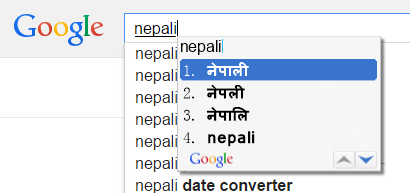
Preview of conversion
Up-to here, you know how to install and type Nepali using help of Google Input tools. And for those people who will definitely comment that you haven’t used a bit of nepali in this tutorial then here is my friend:
यो पोस्ट पढिदिनु भएकोमा म हार्दिक आभारी छु ।

Also few notes: To change back to English language click on म text on the floating widget and choose English, and if you can’t find correct translate, you can use virtual keyboard. You can click on KEYBOARD ICON (picture) on that floating widget to display keyboard where you can find every letter and symbols used in Nepali Language or Nepali Unicode script. Alternatively, if you are on the mobile device or find it difficult to type in Nepali Unicode, Google presents you Nepali translation as well, try it.

That’s all for today. Stay tuned for more tutorials.
Images hosted on postimage.org.
(The author of this article – @theNepale – have already featured this post on TECH.Net.NP as well.)
Tags: Nepali LanguageProductivityReview
Share218Tweet133Send
Previous Post

अपराध रोकथाम र नियन्त्रण गर्न "हाम्रो पुलिस" मोवाईल एप सार्वजनिक

Next Post

Windows 10 is almost here, reserve your free license today.

Related Posts

Reduce background noise during Microsoft Teams or Zoom meetings
How To

How to reduce background noise during Microsoft Teams or Zoom meetings

In this tutorial, we present how to reduce external noise from your microphone during Microsoft Teams and Zoom sessions. We...

by TechSansar Editor
May 20, 2021
Permanently Remove LeadBoxer from Outlook
How To

Remove add-in services from Outlook, LeadBoxer as an example

If you use Outlook email as a part of Microsoft 365 services, you might have noticed that on your desktop...

by TechSansar Editor
January 29, 2021

Recent News

Illustrating Sovereign AI Compute in Nepal Syuchatar with circuitary

Syuchatar in Regional Context: A Policy Commentary on Sovereign AI Compute

May 31, 2026
Technical explainer on Nepal's announced Sovereign AI Compute Center at Syuchatar. What Budget 2083/84 specified, what it didn't, and the four design questions that decide its outcome.

Nepal’s Sovereign AI Compute Center at Syuchatar: A Technical Explainer

May 30, 2026
Nepal budget 2083-84 on IT

Nepal Budget 2083/84: A Comprehensive Reference on the Tech, IT and Innovation Provisions

May 30, 2026
Success Story of a GovTech

Nepal’s Department of IT Saved Rs 98 Crore with Centralized A2P Messaging: A GovTech Success Story

December 31, 2025
Hostinger
  • News
  • Tech
  • Event
Generate free QR Codes with QRSansar

TechSansar.com, ICT For Media Pvt Ltd, Regd #249079/077/078, VAT #609868175.
By continuing to use this site, you agree to our cookies and privacy policies.
Here is our Do Not Track (DNT) Guide. Hosted on a VPS and uses this free PDF tool. You can also subscribe to our newsletter.
Creating tech contents for the b̶o̶t̶s̶ humans since 2009 • Team TechSansar • ICT4M with ❤ from Nepal

Welcome Back!

Login to your account below

Forgotten Password? Sign Up

Create New Account!

Fill the forms below to register

All fields are required. Log In

Retrieve your password

Please enter your username or email address to reset your password.

Log In
No Result
View All Result
  • Home page
  • Shop peripherals
  • Buy software
  • Featured articles
  • My account

TechSansar.com, ICT For Media Pvt Ltd, Regd #249079/077/078, VAT #609868175.
By continuing to use this site, you agree to our cookies and privacy policies.
Here is our Do Not Track (DNT) Guide. Hosted on a VPS and uses this free PDF tool. You can also subscribe to our newsletter.
Creating tech contents for the b̶o̶t̶s̶ humans since 2009 • Team TechSansar • ICT4M with ❤ from Nepal